
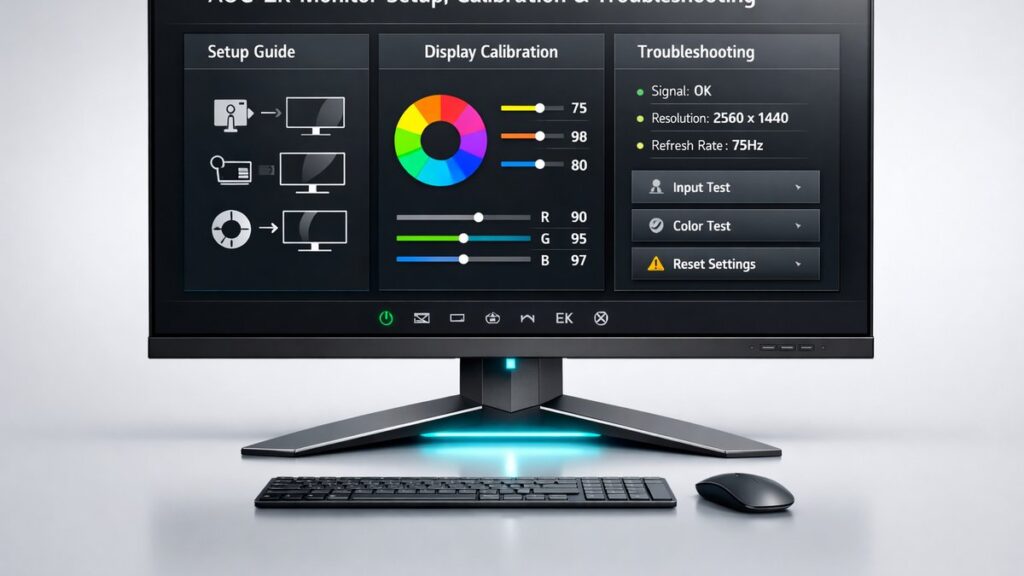
AOC 2K Monitor Setup: What You Need to Know First
Setting up an AOC 2K (2560×1440) monitor correctly requires the right cable standard, GPU driver version, and OSD configuration. Done properly, the display delivers sharp QHD visuals, accurate color, and full refresh-rate performance — whether the panel is an IPS, VA, or Fast IPS variant running at 144 Hz, 165 Hz, or higher.
Quick-Reference Setup Comparison by Connection Type
| Connection | Max Bandwidth | 2560×1440 @ 165 Hz | HDR Support | AMD FreeSync | Recommended For |
|---|---|---|---|---|---|
| DisplayPort 1.4 | 32.4 Gbps | Yes | HDR400/600 | Yes (FreeSync Premium) | Gaming, high refresh rate |
| HDMI 2.1 | 48 Gbps | Yes | HDR400/600 | Yes | Console + PC hybrid setups |
| HDMI 2.0 | 18 Gbps | No (max ~144 Hz) | HDR400 limited | Yes (up to 144 Hz) | Budget GPU pairing |
| HDMI 1.4 | 10.2 Gbps | No (max 60 Hz) | No | No | Legacy fallback only |
| USB-C (DP Alt Mode) | Up to 32.4 Gbps | Model-dependent | Model-dependent | Yes (model-dependent) | Laptop single-cable setups |
Decision Matrix: Which Setup Path Fits Your Use Case?
- If you are a competitive PC gamer targeting 165 Hz or higher → use DisplayPort 1.4 and an NVIDIA RTX or AMD RX 6000/7000 series GPU, because DisplayPort 1.4 is the only widely available interface that reliably carries 2560×1440 at 165 Hz with G-Sync Compatible or FreeSync Premium active simultaneously.
- If you are a console player using a PlayStation 5 or Xbox Series X → use HDMI 2.1 where available on models like the AOC CQ27G3S or U27G3X, because HDMI 2.1 supports 4K 120 Hz and QHD 165 Hz from modern consoles.
- If you are a creative professional needing accurate color → connect via DisplayPort 1.4, enable the sRGB or DCI-P3 preset in the OSD, and perform a hardware calibration with a colorimeter such as the X-Rite i1Display Pro, because factory presets on AOC IPS panels (e.g., AG274QZM) can show Delta-E averages above 3.0 before calibration.
- If you run a dual-monitor setup with one AOC 2K display and one secondary screen → prioritize DisplayPort for the AOC unit and use HDMI for the secondary, because DisplayPort daisy-chaining on most AOC models requires MST (Multi-Stream Transport) mode activated in the OSD.
- If you own a laptop with a USB-C Thunderbolt 4 port → verify the specific AOC model supports DisplayPort Alt Mode at full bandwidth before purchasing, because not all USB-C ports on AOC monitors carry video signal at QHD resolutions.
Before choosing a model, review the AOC 2K monitor buyer’s guide to match panel type, refresh rate, and port configuration to your specific workload.
Step-by-Step Initial Hardware Setup
- Unbox and inspect the panel surface for dead pixels or shipping damage before powering on.
- Attach the stand base to the neck column — most AOC Q27G2S/E and CQ32G3 models use a tool-free click mechanism; the AG-series (AG274QXM, AG275QXN) uses a VESA 100×100 mm screw pattern if mounting to a third-party arm.
- Connect the power brick or IEC cable; AOC 27-inch class monitors typically draw 40–65 W at peak load.
- Select the correct cable: DisplayPort 1.4 for any model rated above 144 Hz, HDMI 2.0 minimum for 144 Hz targets.
- Route the cable through the stand cable management channel where present.
- Power on the monitor, then power on the PC — this order prevents a no-signal condition during GPU POST.
- Allow Windows to auto-detect the display; the OS will initially default to 60 Hz regardless of panel capability.
- Adjust tilt (−5° to +30° on most AOC models), swivel (±30°), and height (up to 150 mm of travel on AG-series) for ergonomic alignment.
Driver and Software Installation
GPU Driver: The Single Most Important Software Step
An outdated GPU driver is the most common reason an AOC 2K monitor fails to expose its full refresh rate or adaptive sync range to Windows Display Settings.
- NVIDIA users: install GeForce Game Ready or Studio Driver via GeForce Experience or the NVIDIA website; version 531.xx and later include improved G-Sync Compatible certification for several AOC FreeSync Premium panels.
- AMD users: install Adrenalin Edition drivers; AMD Software Adrenalin version 23.x and later include Radeon Super Resolution, which can affect perceived sharpness at 2560×1440.
- Intel Arc users (A770, A750): install the latest Arc & Iris Xe Graphics driver from Intel’s driver support page; early driver versions had known EDID handshake issues with some AOC QHD panels.
AOC Monitor Driver (INF File)
- Download the monitor-specific INF driver from the AOC support portal at aoc.com/support using the exact model number (e.g., Q27G2S, AG274QZM, CQ27G3S).
- Install via Device Manager → Display Adapters → right-click the secondary display node → Update Driver → Browse for drivers → select the extracted INF folder.
- The INF file updates the monitor’s EDID profile in Windows, ensuring the correct color space, maximum refresh rate, and HDR metadata are reported to the OS and applications.
- Restart the PC after INF installation before changing display settings.
AOC G-Menu Software
- G-Menu is AOC’s software OSD companion, available for AGON-series models including AG274QXM and AG275QXN.
- Functions include OSD control via mouse/keyboard, game mode switching, crosshair overlay, and frame counter display.
- G-Menu communicates over the monitor’s USB upstream port (USB-B to USB-A cable required, usually included in the box).
- Not available for AOC Q-series budget panels such as Q27G2S or Q24G2A; those models rely on physical OSD joystick navigation only.
How to Set Resolution and Refresh Rate in Windows
- Right-click the desktop → Display Settings.
- Under “Display resolution,” select 2560 × 1440. If this option is missing, the cable or driver is the limiting factor — not the monitor.
- Scroll to “Advanced display settings” → click “Display adapter properties for Display X.”
- Under the Monitor tab, open the “Screen refresh rate” dropdown and select the maximum value supported by the panel (144 Hz, 165 Hz, 170 Hz, 180 Hz, or 240 Hz depending on model).
- Click Apply → Keep Changes.
- On NVIDIA systems: open NVIDIA Control Panel → Change Resolution → confirm 2560×1440 at the target Hz is selected for the correct display.
- On AMD systems: open AMD Software → Display → confirm the refresh rate and enable Radeon FreeSync if not already active.
For a full walkthrough including NVIDIA Control Panel and AMD Radeon Software steps, see how to enable full refresh rate on AOC 2K monitor.
OSD Configuration for Gaming and Productivity
Navigating the AOC OSD Menu
- AGON AG-series monitors use a 5-way joystick on the rear-right panel; budget Q-series use a 4-button layout below the panel.
- Main OSD menu categories: Luminance, Image Setup, Color Setup, Extra, and Input Select.
- The OSD timeout can be extended under Extra → OSD Setting → OSD Timeout (default: 30 seconds; max: 120 seconds).
Essential OSD Settings to Change on First Boot
| OSD Setting | Default Value | Recommended Value | Why It Matters |
|---|---|---|---|
| Brightness | 80–100% | 40–60% (indoor use) | Factory brightness (300–400 nits peak) causes eye fatigue; 120–180 nits suits most indoor environments |
| Contrast | 50% | 50–55% | Raising above 60% clips highlights on IPS panels |
| Color Temperature | Warm / 6500K | Warm or User (R:100, G:100, B:95) | Factory warm preset is close to D65; user mode allows fine tuning |
| Gamma | Gamma 1 (≈2.0) | Gamma 3 (≈2.2) | 2.2 gamma matches sRGB standard and Windows color pipeline |
| Overdrive / Response Time | Medium | Medium (IPS) / Fast (VA) | Strong/Fastest introduces inverse ghosting on most AOC IPS models |
| FreeSync Premium | Off on some models | On | Enables adaptive sync within the VRR range (typically 48–165 Hz) |
| Low Blue Light | Off | Off for color work; Level 1–2 for evening use | Shifts white point; incompatible with calibration profiles |
| HDR Mode | Off | On only when source sends HDR signal | Leaving HDR On in SDR content crushes black levels |
For a complete breakdown of every OSD menu option and FreeSync configuration, refer to optimal OSD and FreeSync settings for AOC 2K monitors.
Color Calibration: Getting Accurate Color from AOC 2K Panels
Why Factory Presets Are a Starting Point, Not an Endpoint
AOC IPS panels like the AG274QZM (Nano IPS, 98% DCI-P3) ship with wide-gamut output enabled by default, which oversaturates sRGB content without an ICC profile active in the OS.
Software Calibration Steps Without a Colorimeter
- Set the OSD: Brightness 40–50%, Contrast 50%, Gamma 3 (2.2 target), Color Temperature to Warm or User mode.
- Open Windows Color Management (search “color management” in Start) → select the AOC display → check “Use my settings for this device.”
- Download and install a manufacturer ICC profile from aoc.com/support for the specific model number — these profiles are measured on representative units and target sRGB D65.
- Set the ICC profile as default under the Device tab in Color Management.
- Verify in applications: Photoshop, Lightroom, and browsers with color management (Firefox, Chrome with hardware acceleration on) will apply the profile automatically.
Hardware Calibration with a Colorimeter
- Recommended devices: X-Rite i1Display Pro Plus, Calibrite ColorChecker Display Pro, Datacolor Spyder X Pro.
- Target profile: sRGB for general use and gaming; DCI-P3 for video production on wide-gamut panels (AG274QZM, AG275QXN).
- Target white point: D65 (6500 K); target gamma: 2.2; target luminance: 120 cd/m² for SDR content.
- Run calibration software (X-Rite i1Profiler, Calibrite PROFILER, Datacolor SPYDER) with the monitor warmed up for at least 30 minutes.
- Save the resulting ICC profile to C:\Windows\System32\spool\drivers\color and assign it in Windows Color Management.
A dedicated deep-dive on calibrating your AOC 2K monitor covers colorimeter workflows, ICC profile validation, and panel-specific calibration targets for each AOC model family.
Troubleshooting Common AOC 2K Monitor Issues
Monitor Not Detected or “No Signal” Message
- Confirm the input source in the OSD matches the physical cable port (DP1, DP2, HDMI1, HDMI2).
- Swap the cable — a passive DisplayPort cable rated below HBR3 will prevent 2560×1440 @ 165 Hz from being established.
- Connect the monitor to a different GPU port or a known-working PC to isolate whether the fault is the display or the graphics card.
- Hold the power button for 10 seconds to factory-reset the OSD on most AOC models if signal handshake corruption is suspected.
- Update GPU drivers and monitor INF file as described above; EDID mismatches between outdated drivers and newer AOC panels cause persistent no-signal states.
A full signal-loss diagnostic is available at fixing AOC 2K monitor detection issues, including GPU-specific steps for NVIDIA, AMD, and Intel Arc systems.
Monitor Stuck at 60 Hz Instead of 144 Hz or 165 Hz
- HDMI 1.4 cable in use — replace with HDMI 2.0 or DisplayPort 1.4.
- Windows refresh rate not changed manually — auto-detection defaults to 60 Hz for compatibility.
- GPU driver not installed (Microsoft Basic Display Adapter active) — install the vendor GPU driver.
- DSC (Display Stream Compression) not enabled — on select AOC models running 2560×1440 @ 240 Hz (e.g., AG275QXN), DSC must be active; check NVIDIA Control Panel → Display → DSC settings or AMD Software → display diagnostics.
Flickering, Ghosting, or Blurry Motion
- Flickering at low frame rates: FreeSync LFC (Low Framerate Compensation) kicks in below the VRR floor (~48 Hz); if flicker persists, cap the frame rate 5–10 FPS above the VRR minimum using RTSS (RivaTuner Statistics Server) or in-game frame limiters.
- Inverse ghosting (bright halo behind moving objects): reduce Overdrive from Strong to Medium; at 165 Hz this rarely causes perceptible overshoot on AOC IPS panels.
- Standard ghosting on VA panels (e.g., AOC CQ32G3, CQ27G3S): VA panels exhibit native pixel response of 8–12 ms gray-to-gray; enable the highest Overdrive level that avoids inverse ghosting, typically “Medium” or “Strong” but not “Strongest.”
- Horizontal band flickering: caused by PWM (Pulse Width Modulation) dimming at low brightness; activate the Flicker-Free / DC Dimming mode in the OSD if available (present on most AGON-series models).
Blurry or Soft Image at 2560×1440
- GPU scaling set to “Full Panel” instead of “No Scaling” — in NVIDIA Control Panel or AMD Software, set scaling to “No Scaling” or “Display” to ensure the monitor performs pixel-for-pixel rendering at native QHD resolution.
- Windows DPI scaling active — at 27 inches and 2560×1440 (108.79 PPI), Windows recommends 100% scaling, which is correct for sharpness; 125% introduces rendering blur in non-DPI-aware applications.
- Sharpness OSD control set too high — values above 50% on AOC panels introduce edge-enhancement artifacts; set to 50% or disable.
HDR Looks Washed Out or Overexposed
- Enable Windows HDR toggle (Settings → System → Display → Windows HD Color) before launching HDR content — AOC panels with DisplayHDR 400 certification (e.g., Q27G2S, AG274QXM) require the OS-level toggle active.
- Games running in exclusive full-screen mode override Windows HDR; set HDR in the in-game display menu independently.
- AOC DisplayHDR 400 panels achieve 400 nits peak brightness — insufficient for specular highlights in HDR; manage expectations relative to DisplayHDR 1000 OLED competition.
- If HDR is forced On in the OSD while the source sends SDR signal, black levels collapse and the image appears grey/washed — ensure HDR OSD mode is set to Auto or Off for SDR workflows.
AOC 2K Monitor Setup Buying Checklist
- Confirm your GPU has a DisplayPort 1.4 output if the target AOC model runs above 144 Hz (165 Hz, 170 Hz, 180 Hz, or 240 Hz).
- Verify the cable in the box matches the required standard — AOC sometimes includes HDMI 2.0 only; purchase a certified DisplayPort 1.4 cable separately if needed.
- Check whether the AOC model uses a removable stand with VESA 100×100 mm compatibility if an aftermarket monitor arm is planned.
- Download the GPU driver update and AOC INF file before first boot to minimize setup time.
- Confirm the panel type: IPS for color accuracy and wide viewing angles; VA for deeper contrast (3000:1 static); Fast IPS for the lowest pixel response at high refresh rates.
- Verify the FreeSync Premium range for the specific model (commonly 48–144 Hz or 48–165 Hz) and confirm it matches your GPU’s typical frame-rate output in target games.
- Identify whether the model supports MST (Multi-Stream Transport) daisy-chaining if a multi-monitor DisplayPort chain is planned.
- Confirm USB hub functionality: AGON AG-series models include a USB 3.2 Gen 1 hub (5 Gbps) with 2–4 downstream ports; Q-series budget panels typically do not.
- Inspect return/exchange policy for dead-pixel coverage — AOC’s warranty dead-pixel policy varies by region and SKU tier.
- Perform the initial test: after setup, run a dead-pixel checker and a gray-ramp test to confirm panel uniformity before the return window closes.
[amazon_rapid query=”AOC 2K QHD gaming monitor” brand=”AOC” layout=”magazine” cols=”2″ country=”US” lang=”en_US” max_pages=”1″ per_page=”4″ sort_by=”RELEVANCE” show_variants=”0″]
Pros and Cons of AOC 2K Monitor Setup by Panel Family
AOC IPS QHD (AG274QXM, Q27G2S, AG275QXN)
- Wide sRGB and DCI-P3 coverage enables accurate color after calibration with an ICC profile
- Pixel response of 1–4 ms GtG (gray-to-gray) at 165–240 Hz eliminates smearing in fast-paced games
- 170° horizontal and vertical viewing angles maintain color accuracy off-axis
- IPS glow visible in dark rooms at sharp viewing angles — inherent to IPS technology
- Peak HDR brightness capped at 400–600 nits on most models, limiting HDR specular highlight performance
AOC VA QHD (CQ27G3S, CQ32G3)
- 3000:1 static contrast ratio delivers true blacks and vivid shadow detail in dark game environments
- Curved 1500R or 1800R panels (CQ32G3 uses 1500R) reduce geometric distortion at 32-inch diagonal
- Lower pixel response (8–12 ms native GtG) requires careful Overdrive tuning to avoid ghosting
- Narrower off-axis viewing — color shifts become visible beyond 30–40° from center
- Setup requires manual Overdrive adjustment per game genre; no universal “set and forget” value
Common Questions
Does the AOC Q27G2S include a DisplayPort 1.4 cable in the box?
The AOC Q27G2S typically ships with one HDMI 2.0 cable and one DisplayPort 1.4 cable. However, box contents vary by regional SKU. Verify the included accessories on the retail listing before purchase, and purchase a certified DisplayPort 1.4 cable independently if the HDMI-only variant is shipped.
Can an AOC 2K monitor run at 2560×1440 from a laptop’s HDMI 1.4 port?
HDMI 1.4 supports 2560×1440 at a maximum of 60 Hz only. The panel will function but cannot reach its rated 144 Hz or 165 Hz refresh rate. Use a USB-C to DisplayPort 1.4 adapter or a dedicated docking station with DisplayPort Alt Mode output to access the monitor’s full refresh rate from a laptop.
Is FreeSync Premium compatible with NVIDIA GPUs on AOC monitors?
Most AOC FreeSync Premium monitors are G-Sync Compatible certified or can operate with NVIDIA’s adaptive sync implementation when G-Sync Compatible mode is enabled in NVIDIA Control Panel under Display → Set up G-Sync. Models including AG274QXM and Q27G2S have been independently tested and confirmed compatible with RTX 30 and RTX 40-series GPUs.