
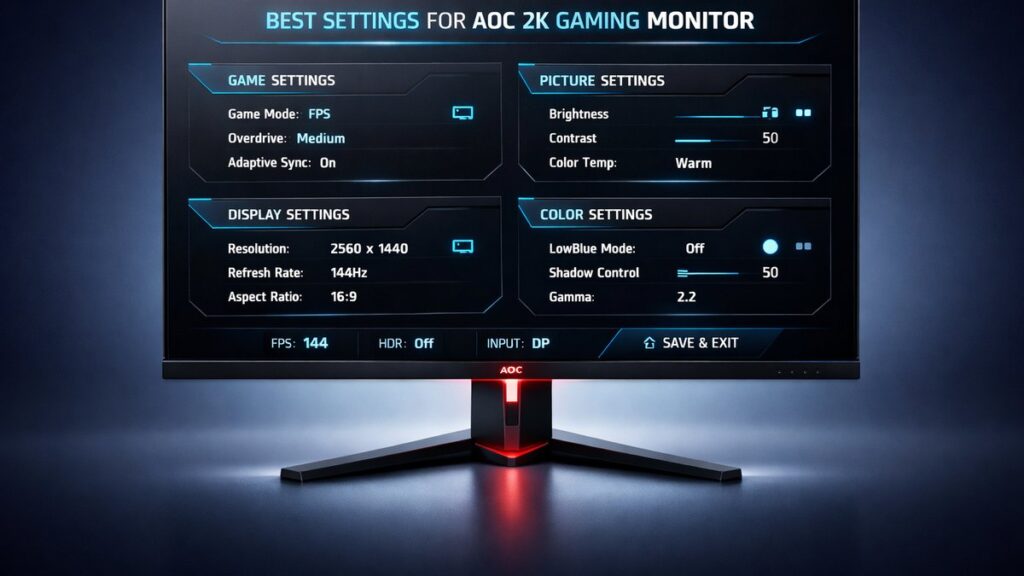
Best Settings for AOC 2K Gaming Monitors: The Short Answer
For most AOC 2K (2560×1440) gaming monitors, optimal performance requires enabling FreeSync Premium in the OSD, setting overdrive to Medium, targeting 100–120 nits brightness, and adjusting gamma to 2.2. These four changes alone eliminate screen tearing, minimize ghosting, and improve dark-scene visibility without professional calibration tools.
AOC 2K Monitor Settings at a Glance
| OSD Setting | Recommended Value | Why It Matters | Applies To |
|---|---|---|---|
| Brightness | 100–120 nits (≈ 40–50% slider) | Reduces eye strain; matches typical room luminance | All AOC 2K models |
| Contrast | 70–75% | Preserves near-white detail on IPS/VA panels | All AOC 2K models |
| Gamma | Gamma 3 (≈ 2.2 curve) | Industry-standard tone reproduction for SDR content | All AOC 2K models |
| Color Temperature | Warm / 6500 K | Matches sRGB D65 white point standard | All AOC 2K models |
| Overdrive / Response Time | Medium (Level 2) | Balances ghosting reduction vs. inverse ghosting (coronas) | Most AOC 2K models |
| FreeSync / Adaptive Sync | Enabled | Eliminates tearing across AMD and G-Sync Compatible GPUs | FreeSync-capable models |
| Low Blue Light | Off (gaming); Mode 1 (desktop) | Preserves color accuracy during gameplay | All AOC 2K models |
| Shadow Control / Black Equalizer | 50–55 | Lifts shadow detail for dark-scene visibility in FPS games | AOC Q27G2, CQ27G2, Q27G3XME |
Which Settings Should You Prioritize for Your Use Case?
Match your profile to the right configuration before touching every OSD menu item.
- Competitive FPS (CS2, Valorant, Apex Legends) → Enable FreeSync + set overdrive to Strong (Level 3) + raise Black Equalizer to 55–60, because low-latency response and dark-scene visibility directly affect kill ratios at 144 Hz or 165 Hz.
- Open-world / RPG (Cyberpunk 2077, Elden Ring) → Set overdrive to Medium (Level 2) + gamma to 2.2 + contrast to 70%, because cinematic content demands color accuracy over raw speed.
- Content creation / photo editing → Disable FreeSync + set color temperature to 6500 K (Warm) + disable all image-enhancement modes, because adaptive sync can introduce luminance flicker on static frames and enhancement modes shift hue values.
- Long desktop work sessions → Enable Low Blue Light Mode 2 + reduce brightness to 80–90 nits (≈ 30% slider) + set gamma to 2.2, because sustained exposure above 200 nits correlates with increased eye fatigue according to ergonomic guidelines from organizations like ANSI/HFES.
- HDR gaming on AOC Q27G3XME or Q32G2WG4 → Enable DisplayHDR 400 mode + set local dimming to Auto + keep overdrive at Medium, because HDR tone mapping overrides manual contrast settings and overdrive interacts with brightness transitions.
OSD Menu Settings Explained: What Each Control Actually Does
Brightness and Contrast: Why the Default Is Almost Always Wrong
AOC ships most 2K monitors with brightness preset at 80–100% (250–300 nits), optimized for brightly lit showroom floors, not home or office environments.
- Target 100–120 nits for a typical room with ambient lighting of 50–100 lux.
- Target 80–100 nits for dark-room gaming or late-night sessions.
- Contrast at 75% preserves highlight gradients on IPS panels; VA panels (AOC CQ27G2) can tolerate 80% before white compression appears.
- Avoid using brightness above 200 nits for extended sessions — sRGB content is mastered at 80–120 nits per ITU-R BT.1886 specification.
Gamma Setting: Which AOC Preset Maps to 2.2?
- AOC OSD typically labels gamma as Gamma 1 through Gamma 5 rather than numeric values.
- On most AOC 2K monitors, Gamma 3 measures closest to the 2.2 power curve — the sRGB standard for SDR desktop and gaming content.
- Gamma 1 produces a brighter, washed-out midtone characteristic; Gamma 5 crushes shadow detail.
- Verify with a free tool like DisplayCAL or the Lagom LCD gamma test pattern if accuracy matters for your workflow.
Color Temperature: Matching the sRGB D65 Standard
- AOC’s “Warm” preset typically measures 6400–6600 K — within acceptable tolerance of the 6500 K D65 white point used by sRGB and most game color pipelines.
- “Cool” presets (7000–9300 K) shift the image blue-green and inflate perceived sharpness without adding real resolution.
- Custom RGB sliders allow fine-tuning: a starting point of R 100 / G 97 / B 94 corrects the slight red-green bias common on AOC IPS panels.
- For HDR content on monitors certified to DisplayHDR 400, leave color temperature in the monitor’s HDR mode — manual white point adjustment is overridden by the HDR metadata signal.
Overdrive / Response Time: How to Find the Sweet Spot Without Inverse Ghosting
Overdrive (labeled “Response Time” in AOC menus) applies a voltage boost to liquid-crystal transitions. Too little causes trailing smear (ghosting); too much causes bright halos ahead of moving objects (inverse ghosting or coronas).
- At 144 Hz: Medium (Level 2) is the safest choice across AOC Q27G2, CQ27G2, and Q27G3XME — confirmed by response-time oscilloscope testing published by RTINGS.
- At 165 Hz: Strong (Level 3) may be used on fast IPS panels without visible coronas — test with the UFO Motion Test at Blur Busters.
- At 75 Hz: Light (Level 1) or Medium — higher overdrive at lower refresh rates amplifies inverse ghosting because pixel transitions have more time to overshoot.
- FreeSync active: Overdrive effectiveness changes as frame rate drops. AOC’s “Adaptive Frame Rate” or “VRB” (Variable Refresh Backlight) is not compatible with FreeSync simultaneously — choose one based on priority.
Black Equalizer / Shadow Control: Visibility in Dark Scenes Without Destroying Blacks
- Black Equalizer (also called “Shadow Control” on select AOC models) is a selective gamma lift applied only to the lower 30% of the luminance range.
- A value of 50 (midpoint) is neutral on most AOC OSD scales — shadows render at calibrated gamma.
- Values of 55–60 reveal hidden enemies in shadow-heavy maps in titles like Call of Duty: Warzone and Hunt: Showdown without overexposing midtones.
- Avoid values above 65 — shadow detail becomes visually flat and the image looks gamma-shifted to Gamma 1 territory, undermining artistic intent in narrative games.
How to Enable FreeSync and G-Sync Compatible Mode on AOC 2K Monitors
FreeSync Premium synchronizes the monitor’s refresh rate to the GPU’s output frame rate, eliminating tearing and reducing stutter within the monitor’s supported variable refresh rate (VRR) range.
Step-by-Step: Enabling FreeSync via the AOC OSD
- Press the joystick or OSD button on the back of the monitor to open the main menu.
- Navigate to Gaming or Game Settings submenu.
- Locate Adaptive Sync or FreeSync — toggle to On.
- Exit the OSD and save settings.
Step-by-Step: Enabling FreeSync in AMD Radeon Software
- Open AMD Radeon Software → click Gaming tab → select Global Graphics.
- Set AMD FreeSync to Enabled.
- Ensure Display Resolution is set to 2560×1440 and refresh rate matches the monitor’s maximum (144 Hz or 165 Hz).
- Confirm the VRR range in the monitor spec sheet — AOC Q27G2 supports 48–144 Hz VRR; operating below 48 Hz may introduce stutter (LFC — Low Framerate Compensation — kicks in at 2× the lower bound on FreeSync Premium models).
Enabling G-Sync Compatible Mode on NVIDIA GPUs
- Ensure FreeSync is enabled in the AOC OSD (prerequisite).
- Open NVIDIA Control Panel → Display → Set up G-SYNC.
- Check Enable G-SYNC, G-SYNC Compatible and select the AOC monitor from the display list.
- Select Enable for windowed and full-screen mode for broadest application compatibility.
- Click Apply. NVIDIA may display a compatibility warning — G-Sync Compatible validation on AOC FreeSync models like the Q27G2 has been independently confirmed by RTINGS.
What Refresh Rate Should Be Set in Windows Display Settings?
- Always set Windows display refresh rate to the monitor’s maximum rated Hz (144 Hz or 165 Hz) — not “Recommended” if Windows auto-selects 60 Hz.
- Path: Settings → System → Display → Advanced Display → Refresh Rate.
- Mismatched refresh rate between Windows and the monitor disables FreeSync even if both the OSD and Radeon Software show it as enabled.
[amazon_rapid query=”AOC 2K QHD gaming monitor 144Hz FreeSync” brand=”AOC” layout=”magazine” cols=”2″ country=”US” lang=”en_US” max_pages=”1″ per_page=”4″ sort_by=”RELEVANCE” show_variants=”0″]
Pros and Cons of Common AOC 2K OSD Configuration Approaches
Maximum Performance Mode (FreeSync + Strong Overdrive)
- Eliminates screen tearing at 144–165 Hz without any frame-cap workaround
- Strong overdrive reduces 80% gray-to-gray response to under 5 ms on fast IPS panels
- LFC (Low Framerate Compensation) on FreeSync Premium keeps smoothness below 48 fps
- Minimizes input lag compared to V-Sync, which adds 1–2 frame delay
Drawbacks
- Strong overdrive at 144 Hz on VA panels (CQ27G2) causes visible coronas on high-contrast edges
- FreeSync with NVIDIA requires G-Sync Compatible validation — not all AOC models are on NVIDIA’s official list
- VRB / Motion Blur Reduction cannot run simultaneously with FreeSync
Calibrated Accuracy Mode (Warm Temp + Gamma 2.2 + No Enhancement)
- Color temperature within 150 K of sRGB D65 — suitable for photo review and video editing
- Gamma 3 preset keeps shadow and highlight gradients accurate across the 8-bit panel range
- Disabling Black Equalizer preserves artistic intent in HDR-graded and SDR cinematic content
- Eliminates hue shifts introduced by AOC’s DCB (Dynamic Contrast Boost) feature
Drawbacks
- No shadow lifting — enemies in dark corners remain harder to spot in competitive FPS titles
- Without overdrive optimization, motion clarity at 144 Hz is visibly softer than the Strong setting
- Requires manual re-enabling of game-mode features when switching back to gaming
Dark Scene Visibility: Tuning AOC Monitors for Shadow-Heavy Games
AOC’s Black Equalizer feature is the primary tool for improving visibility in dark environments. Understanding how it interacts with gamma and panel type prevents over-correction.
- IPS panels (AOC Q27G2, Q27G3XME): Black Equalizer at 55 effectively reveals shadow detail without introducing glow artifacts — IPS glow is static and does not worsen with luminance lifting.
- VA panels (AOC CQ27G2, CQ32G1): Black Equalizer above 60 may produce a “milky” appearance in near-black areas due to VA’s characteristic smearing at dark transitions — keep at 52–55 maximum.
- Ambient room lighting matters: a room with zero ambient light makes any Black Equalizer value above 55 appear unnaturally bright and fatiguing.
- In-game gamma and brightness settings stack with OSD Black Equalizer — raising both simultaneously can result in a completely washed-out low-end that eliminates shadow contrast entirely.
Pre-Purchase and Pre-Configuration Verification Checklist
- Confirm the monitor’s VRR range (Hz lower bound to upper bound) in the official AOC product spec sheet before enabling FreeSync — operating below the lower bound disables adaptive sync.
- Verify DisplayPort vs. HDMI FreeSync support: AOC 2K monitors support FreeSync over both, but G-Sync Compatible requires DisplayPort on NVIDIA GeForce RTX and GTX cards.
- Check panel type (IPS vs. VA) in the spec sheet — overdrive and Black Equalizer optimal values differ significantly between technologies.
- Confirm Windows refresh rate is set to maximum rated Hz after every driver update — GPU driver updates occasionally reset display settings to 60 Hz.
- Run the Blur Busters UFO Motion Test at the monitor’s native Hz to verify overdrive level before settling on a setting — visual coronas are immediately obvious at 144 Hz with a moving black bar on white background.
- Perform a 30-minute warm-up before any serious calibration measurement — LCD panels drift in color temperature and brightness during the first 20–30 minutes of operation.
- Check if the AOC model ships with factory calibration data or a calibration report — higher-tier models like the AOC Q27G3XME include Delta-E measurements from the factory, reducing the need for manual adjustment.
How AOC 2K Models Compare on Key Tunable Parameters
| Model | Panel Type | Max Refresh Rate | FreeSync Range | Overdrive Levels | Black Equalizer | HDR Certification |
|---|---|---|---|---|---|---|
| AOC Q27G2 | IPS | 144 Hz | 48–144 Hz | 4 levels | Yes (0–20 scale) | None |
| AOC CQ27G2 | VA (1500R curve) | 144 Hz | 48–144 Hz | 4 levels | Yes (0–20 scale) | None |
| AOC Q27G3XME | Fast IPS | 180 Hz | 48–180 Hz | 5 levels | Yes | DisplayHDR 400 |
| AOC Q32G2WG4 | VA | 165 Hz | 48–165 Hz | 4 levels | Yes | DisplayHDR 400 |
| AOC Q27G4XN | Fast IPS | 180 Hz | 48–180 Hz | 5 levels | Yes | DisplayHDR 400 |
For a broader look at initial hardware setup, port selection, and driver installation before applying these OSD settings, see the AOC 2K monitor settings and setup overview — it covers cable selection, resolution confirmation, and ICC profile loading in detail.
Owners of the curved VA model can also reference the best OSD settings for the AOC CQ27G2 curved monitor for panel-specific overdrive, contrast, and Black Equalizer values confirmed through hands-on testing.
Common Questions
Does enabling FreeSync increase input lag on AOC 2K monitors?
No — FreeSync (AMD Adaptive Sync) does not add measurable input lag on AOC QHD monitors. RTINGS measurements on comparable FreeSync Premium IPS panels show less than 0.1 ms added latency versus fixed refresh. V-Sync, by contrast, adds one full frame of delay (6.9 ms at 144 Hz).
Why does my AOC monitor look washed out after enabling HDR in Windows?
Windows HDR mode (Auto-HDR or HDR10) tone-maps all SDR content through the monitor’s HDR pipeline, which typically lifts black levels and reduces contrast on DisplayHDR 400-certified panels that lack full local dimming. Disable Windows HDR for SDR desktop use; enable it only within games that natively output HDR10 metadata at 2560×1440.
Should overdrive be changed when frame rate drops significantly mid-game?
On AOC FreeSync Premium models, manually lowering overdrive is unnecessary — the VRR range adjusts pixel transition timing automatically as frame rate shifts. However, if the frame rate drops below the FreeSync lower bound (typically 48 Hz), consider switching overdrive to Light to avoid overdrive-induced coronas that become more visible at lower refresh rates.