
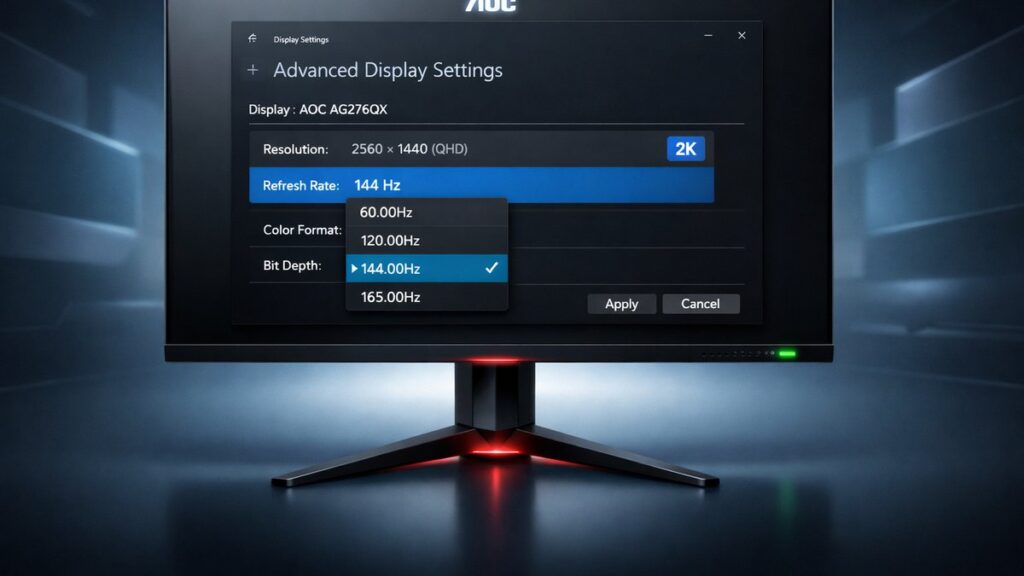
How to Enable 144Hz or 165Hz on an AOC 2K Monitor in Windows
To unlock 144Hz or 165Hz on an AOC 2K (2560×1440) monitor, open Windows Display Settings → Advanced Display → “Choose a refresh rate,” then select the target Hz. A DisplayPort 1.2 or HDMI 2.0 cable and a compatible GPU are required. Without the correct cable or driver settings, the display defaults to 60Hz.
AOC 2K Monitor Refresh Rate at a Glance
| AOC Model | Panel | Max Refresh Rate | Required Cable | Resolution |
|---|---|---|---|---|
| AOC Q27G2S | IPS | 165Hz | DisplayPort 1.2 | 2560×1440 |
| AOC Q27G3XMN | Fast IPS | 180Hz | DisplayPort 1.4 | 2560×1440 |
| AOC Q27G2E | VA | 144Hz | DisplayPort 1.2 | 2560×1440 |
| AOC Q32G2WG3 | VA | 165Hz | DisplayPort 1.2 | 2560×1440 |
| AOC Q27G4XN | Fast IPS | 170Hz | DisplayPort 1.4 | 2560×1440 |
| AOC CQ27G2 | VA (Curved) | 144Hz | DisplayPort 1.2 | 2560×1440 |
Which Setup Profile Matches Your Situation?
Match your hardware and goal to the fastest path to full refresh rate activation.
- If you have an NVIDIA GPU (RTX 3060 or newer) → Use NVIDIA Control Panel → “Change resolution” → set 2560×1440 @ 144Hz or 165Hz via DisplayPort 1.2+, because NVCP overrides Windows defaults more reliably than Display Settings alone.
- If you have an AMD GPU (RX 6600 or newer) → Use AMD Radeon Software → Display tab → Custom Resolution, because Radeon Software exposes per-display refresh rate without requiring a reboot.
- If you are on Intel Arc (A750 or newer) → Use Intel Arc Control → Display → Refresh Rate selector, because Intel’s driver stack requires its own panel to expose rates above 60Hz at 1440p.
- If your cable is HDMI 2.0 → You can reach 144Hz at 2560×1440 on HDMI 2.0, but 165Hz or 180Hz requires DisplayPort 1.2/1.4 respectively; verify the AOC model’s HDMI bandwidth spec first.
- If refresh rate options are greyed out in Windows → Update the GPU driver and reconnect using a certified DisplayPort 1.2 (or 1.4) cable, because Windows reads available modes from the monitor’s EDID data which a passive adapter can corrupt.
- If you just bought the monitor and are doing first-time configuration → Follow the complete AOC 2K monitor setup and calibration guide before adjusting refresh rate settings, as OSD (on-screen display) input source and resolution must be confirmed first.
What Do Bandwidth, EDID, and Overdrive Mean for Your Refresh Rate?
DisplayPort Bandwidth and Why It Limits 1440p Refresh Rates
DisplayPort 1.2 delivers 17.28 Gbps of usable bandwidth — enough for 2560×1440 at up to 165Hz with 8-bit color. DisplayPort 1.4 reaches 25.92 Gbps, unlocking 180Hz+ at the same resolution with HDR enabled.
HDMI 2.0 provides 14.4 Gbps usable bandwidth, supporting 2560×1440 at 144Hz with 8-bit color only. HDMI 2.1 raises the ceiling to 42.6 Gbps, but few AOC 2K monitors ship with HDMI 2.1 ports.
What Is EDID and Why Does It Affect Available Refresh Rate Options?
EDID (Extended Display Identification Data) is a metadata block stored on the monitor’s firmware. Windows and GPU drivers read this block at startup to populate the refresh rate dropdown. A cheap passive DP-to-HDMI adapter, a damaged cable, or an older driver can misread EDID, causing Windows to offer only 60Hz even when the panel supports 165Hz.
Overdrive (Response Time Boost) and Its Relationship to Refresh Rate
AOC labels its overdrive setting “MRC” (Motion Response Control) or simply “Response Time” in the OSD. Running overdrive at “Strong” or “Fastest” above 144Hz can introduce inverse ghosting (a bright halo preceding moving objects). At 165Hz, the “Medium” overdrive preset typically balances pixel transition speed with artifact-free output on AOC IPS panels.
FreeSync and G-Sync Compatible: Does Enabling Them Change the Max Refresh Rate?
AMD FreeSync Premium (supported on most AOC Q-series 2K monitors) operates within a variable refresh rate (VRR) range, typically 48–165Hz. Enabling FreeSync in the OSD and in AMD Radeon Software does not lower the maximum refresh rate ceiling — it adds dynamic frame pacing within that range. NVIDIA G-Sync Compatible validation, awarded by NVIDIA’s testing lab, similarly keeps the rated maximum intact while enabling VRR on GeForce GPUs.
Step-by-Step: Enable 144Hz or 165Hz via Windows Display Settings
- Connect the AOC monitor to the GPU using a DisplayPort 1.2 (or 1.4) cable — not the included HDMI cable if HDMI 2.0 is the only HDMI version on your GPU.
- Right-click the desktop → select “Display settings.”
- Scroll to “Advanced display” (Windows 11) or click “Display adapter properties” (Windows 10).
- In Windows 11: click “Choose a refresh rate” dropdown → select 144Hz or 165Hz. In Windows 10: click the “Monitor” tab → “Screen refresh rate” dropdown → select the target Hz.
- Click “Keep changes” within the 15-second confirmation window.
- Verify the active refresh rate using a browser-based tool such as TestUFO (testufo.com) or the RTINGS frame rate counter to confirm the display is actually rendering at the selected rate.
Step-by-Step: Enable 144Hz or 165Hz via NVIDIA Control Panel
- Right-click the desktop → “NVIDIA Control Panel.”
- Navigate to “Display” → “Change resolution.”
- Select the AOC monitor from the display list at the top.
- Under “Resolution,” choose 2560 × 1440.
- Open the “Refresh rate” dropdown on the same page → select 144Hz or 165Hz.
- Click “Apply” → confirm the change in the pop-up dialog.
- If the target Hz does not appear, click “Customize…” → “Create Custom Resolution” → enter 2560, 1440, and the desired Hz. Use “Automatic” timing standard first; switch to “CVT Reduced Blanking” if automatic fails.
Step-by-Step: Enable 144Hz or 165Hz via AMD Radeon Software
- Right-click the desktop → “AMD Radeon Software” (or search “Radeon Software” in the Start menu).
- Click the “Display” tab at the top of the Radeon Software window.
- Locate the detected AOC monitor panel — confirm the model name matches.
- Click the “Refresh Rate” dropdown → select 144Hz or 165Hz.
- Toggle “AMD FreeSync” to “Enabled” if desired — this does not cap the maximum refresh rate.
- If the rate is missing, click “Custom Resolutions” → “Add” → enter 2560×1440 at the target Hz → “Save.”
Pros and Cons: DisplayPort vs. HDMI for 1440p High Refresh Rates
DisplayPort 1.2 / 1.4
- Supports up to 165Hz (DP 1.2) and 180Hz+ (DP 1.4) at 2560×1440 with 8-bit color
- Natively carries audio, no adapter needed for most GPUs
- Lossless EDID handshake reduces “grey out” issues in Windows refresh rate selector
- Required for AMD FreeSync Premium and NVIDIA G-Sync Compatible at full VRR range
- DP 1.4 supports Display Stream Compression (DSC) enabling HDR at high refresh rates
HDMI 2.0 / 2.1
- HDMI 2.0 caps at 144Hz for 2560×1440 with 8-bit color — 165Hz is not achievable
- HDMI 2.1 (48 Gbps) supports 165Hz+ at 1440p but is rare on AOC 2K monitor ports
- Consumer HDMI cables widely available and typically included in box
- Passive HDMI-to-DP adapters often corrupt EDID, blocking high-refresh options in Windows
- HDMI VRR (FreeSync over HDMI) supported on select AOC models with HDMI 2.0b port
Common Pitfalls That Keep Your AOC Monitor Stuck at 60Hz
- Using the HDMI cable included in the box: most AOC 2K monitors ship with an HDMI 2.0 cable, which limits the display to 60Hz on GPUs with HDMI 2.0 ports when the Windows default resolution is set to 2560×1440 — switch to DisplayPort.
- Passive DisplayPort-to-HDMI adapters: these convert the signal to HDMI 2.0 bandwidth, silently capping the refresh rate; use an active adapter or a native DP cable.
- Outdated GPU driver: NVIDIA and AMD periodically update EDID parsing and mode detection; a driver more than 6 months old may not expose 165Hz modes for newer AOC panels — use DDU (Display Driver Uninstaller) for a clean reinstall if needed.
- Windows color depth set to 10-bit (30-bit): at 2560×1440, 10-bit color over DisplayPort 1.2 consumes extra bandwidth, which can prevent Windows from offering 165Hz; drop to 8-bit (24-bit) in Display adapter properties → “List All Modes.”
- AOC OSD input source mismatch: if the monitor’s OSD is set to HDMI input while the cable is in the DisplayPort port, the monitor will not detect the DP signal and defaults to 60Hz — confirm the active input in the OSD menu.
- G-Sync module interference: a small number of NVIDIA G-Sync (hardware module) monitors disable FreeSync over DP; AOC 2K monitors use G-Sync Compatible (software validation) instead, which avoids this issue — verify “G-Sync Compatible” not “G-Sync” is listed in NVIDIA Control Panel.
Pre-Purchase and Pre-Configuration Checklist
- Confirm your GPU has a native DisplayPort 1.2 or 1.4 output — check the GPU spec sheet, not just the physical port shape.
- Verify the specific AOC model’s maximum refresh rate in its official specification sheet (AOC lists this under “Timing” on product pages).
- Use a certified DisplayPort cable rated for the required bandwidth — look for the DisplayPort logo and bandwidth rating printed on the cable jacket.
- Check that your GPU driver is the latest stable release from NVIDIA, AMD, or Intel before attempting to change refresh rate settings.
- Open the AOC monitor OSD → “Input Select” → confirm the active source matches the physical cable connection before adjusting Windows settings.
- After enabling 144Hz or 165Hz, verify actual output rate with an independent tool (TestUFO, RTINGS online tools, or CapFrameX) — Windows can show a selected rate that the display has not confirmed.
- If using multiple monitors, check that the second display’s refresh rate setting is not forcing the AOC monitor into a shared lower rate via Windows “Duplicate” display mode.
[amazon_rapid query=”AOC 2K 144Hz 165Hz gaming monitor DisplayPort” brand=”AOC” layout=”magazine” cols=”2″ country=”US” lang=”en_US” max_pages=”1″ per_page=”4″ sort_by=”RELEVANCE” show_variants=”0″]
Common Questions
Can you reach 165Hz on an AOC 2K monitor using only HDMI?
HDMI 2.0 (14.4 Gbps usable) cannot carry 2560×1440 at 165Hz with 8-bit color — the bandwidth ceiling stops at 144Hz for that resolution. Achieving 165Hz requires DisplayPort 1.2 at minimum. Only HDMI 2.1 (available on select AOC models) can exceed 144Hz at 1440p.
Why does Windows show 144Hz as the maximum when the AOC monitor is rated for 165Hz?
This typically means Windows is reading a partial or legacy EDID block, usually caused by an HDMI cable being used instead of DisplayPort, an outdated GPU driver, or a passive adapter. Switch to a native DisplayPort 1.2 cable, update the GPU driver, and re-check “Advanced display” in Windows Display Settings.
Does enabling FreeSync or G-Sync Compatible reduce the maximum refresh rate on AOC 2K monitors?
No. AMD FreeSync Premium and NVIDIA G-Sync Compatible operate within the monitor’s rated VRR range (for example, 48–165Hz on the AOC Q27G2S). The upper limit stays at 165Hz; VRR only adds dynamic adjustment below that ceiling when GPU frame output drops.