
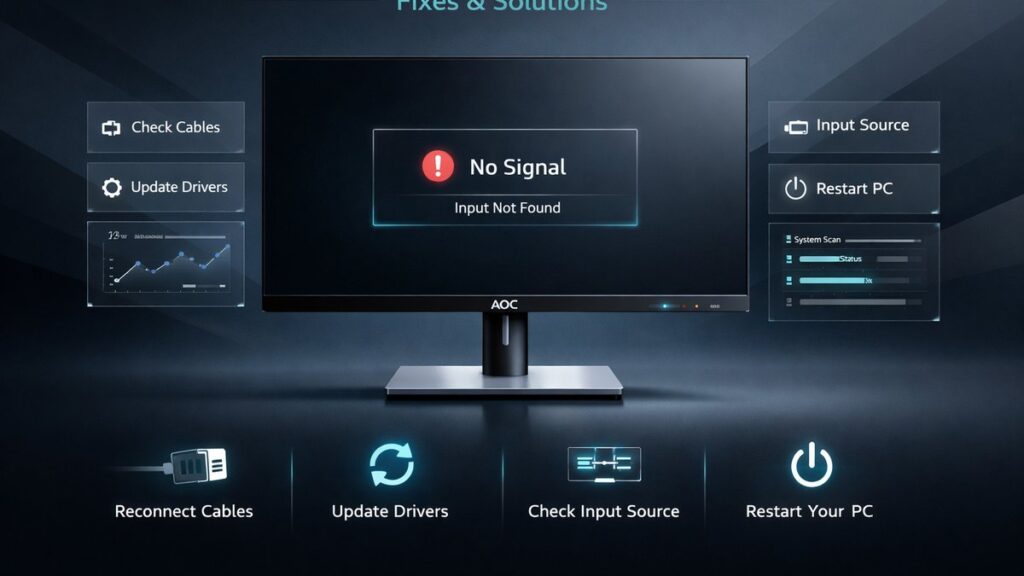
AOC 2K Monitor Not Detected: Direct Fixes That Work
An AOC 2K monitor showing no signal or not detected by Windows or macOS is almost always caused by a faulty cable, wrong input source, missing DisplayPort/HDMI driver, or an incorrect resolution handshake. Resolving the issue requires isolating the signal chain — cable, port, GPU output, and OS display settings — in under 15 minutes for most setups.
AOC 2K Monitor Detection Problem: Quick Comparison of Root Causes
| Symptom | Most Likely Cause | Primary Fix | Difficulty |
|---|---|---|---|
| Black screen, power LED on | Wrong input source selected | Cycle OSD input button | Easy |
| “No Signal” on-screen message | Loose or faulty cable | Replace with certified DisplayPort 1.4 or HDMI 2.0 cable | Easy |
| Monitor detected but wrong resolution | GPU driver not outputting 2560×1440 | Force resolution in NVIDIA/AMD/Intel control panel | Medium |
| Not detected after sleep/wake | Windows power management conflict | Disable selective USB suspend; update GPU driver | Medium |
| Second monitor not recognized | GPU running out of display outputs | Use active DisplayPort adapter or dedicated GPU port | Medium |
| Flickering or signal drops | Cable bandwidth insufficient for 2560×1440 @ 165 Hz | Replace with HDMI 2.1 or DisplayPort 1.4 cable rated for 32.4 Gbps | Easy |
| No signal after driver update | DDC/CI or EDID data conflict | Clear GPU driver with DDU, reinstall clean | Medium |
| Mac not detecting AOC monitor | USB-C/Thunderbolt adapter incompatibility | Use Apple-certified or CalDigit Thunderbolt 4 hub | Medium |
Which Fix Should You Try First? Decision Matrix by Use Case
- If you just connected the AOC monitor for the first time and see “No Signal” → Check the OSD (On-Screen Display) menu and manually select the correct input (DisplayPort or HDMI) because AOC monitors default to Auto-detect, which can miss the active port on cold boot.
- If you upgraded your GPU and the AOC 2K display is no longer recognized → Uninstall the old GPU driver using Display Driver Uninstaller (DDU) in safe mode and reinstall the latest NVIDIA Game Ready or AMD Adrenalin driver, because residual driver files block EDID handshake on new hardware.
- If the monitor works at 1080p but refuses 2560×1440 → Force the resolution in NVIDIA Control Panel under “Change resolution” or AMD Radeon Software under “Custom resolution,” because some cable types cap bandwidth below the 8.91 Gbps needed for QHD at 60 Hz.
- If you use a laptop with USB-C output → Verify the USB-C port on your laptop supports DisplayPort Alt Mode (DP Alt Mode), because charging-only USB-C ports carry no video signal regardless of adapter quality.
- If the AOC monitor disappears after the PC wakes from sleep → Disable “USB selective suspend” in Windows Power Options and set “Turn off display” to “Never” for the connected GPU output, because Windows 11 aggressive power states drop HDMI/DP handshakes.
- If you are on macOS and the monitor is not detected → Open System Settings → Displays → hold Option and click “Detect Displays,” because macOS does not auto-probe external displays on every connection cycle.
- If the signal drops intermittently at 2560×1440 @ 144 Hz or 165 Hz → Replace the cable with a DisplayPort 1.4 cable certified for HBR3 (High Bit Rate 3, 32.4 Gbps) bandwidth, because standard HDMI 2.0 cables are limited to 18 Gbps and cannot sustain high-refresh QHD without compression.
Step-by-Step Fixes for AOC 2K Monitor Not Detected
Step 1: Verify the Physical Signal Chain
- Power off both the PC and the AOC monitor completely — do not use sleep or standby.
- Disconnect and firmly reseat the cable at both ends (monitor port and GPU/motherboard port).
- Confirm you are using a DisplayPort 1.4 or HDMI 2.0/2.1 cable — not a VGA or DVI cable, which cannot carry 2560×1440 signals on most AOC 2K models.
- Test with a second known-good cable of the same type to rule out a damaged cable as the cause.
- Connect to a different port on the GPU (for example, switch from HDMI port 1 to DisplayPort 1) to eliminate a dead output.
- If using a KVM switch or docking station, connect the AOC monitor directly to the GPU to isolate intermediary devices.
Step 2: Select the Correct Input Source via OSD
- Press the joystick or menu button on the bottom-right edge of the AOC monitor bezel to open the OSD.
- Navigate to “Input Select” or “Source.”
- Manually choose DisplayPort 1, DisplayPort 2, HDMI 1, or HDMI 2 — whichever matches the physical cable you connected.
- Wait 5–8 seconds for the monitor to negotiate a signal handshake with the GPU.
- If the screen remains black, cycle to the next available input and wait again — AOC auto-detect can take up to 10 seconds per input on cold boot.
Step 3: Update or Reinstall the GPU Driver (Windows)
- Boot into Windows using the built-in display or a secondary monitor.
- Download Display Driver Uninstaller (DDU) from Wagnardsoft and the latest GPU driver from NVIDIA.com, AMD.com, or Intel.com.
- Boot into Safe Mode (hold Shift → Restart → Troubleshoot → Advanced Options → Startup Settings → F4).
- Run DDU and select “Clean and restart” for your GPU type (NVIDIA, AMD, or Intel).
- After restart, install the freshly downloaded driver without rebooting into Safe Mode first.
- Once the driver installs, Windows should detect the AOC monitor and apply 2560×1440 automatically if the cable supports QHD bandwidth.
Step 4: Force 2560×1440 Resolution in Windows Display Settings
- Right-click the desktop → Display settings → Scroll to “Display resolution.”
- If 2560×1440 appears in the dropdown, select it and click “Keep changes.”
- If 2560×1440 is absent, open NVIDIA Control Panel → Change resolution → select the AOC monitor → click “Customize” → “Create Custom Resolution” and enter 2560 × 1440 at the target refresh rate (60, 144, or 165 Hz depending on your AOC model).
- For AMD GPUs, open Radeon Software → Display → Custom Resolutions → enter the same values.
- If the resolution still does not apply, the cable is the bottleneck — a standard HDMI 1.4 cable supports only up to 1920×1080 at 60 Hz.
Step 5: Fix Sleep/Wake Detection Loss on Windows 10 and Windows 11
- Open Control Panel → Power Options → Change plan settings → Change advanced power settings.
- Expand “USB settings” → “USB selective suspend setting” → set to Disabled.
- Expand “Display” → “Turn off display after” → set to a longer interval or Never for the active power plan.
- Open Device Manager → expand “Universal Serial Bus controllers” → right-click each USB Root Hub → Properties → Power Management → uncheck “Allow the computer to turn off this device to save power.”
- If the issue persists on Windows 11, navigate to Settings → System → Display → “Graphics” → set the AOC monitor to “High performance” GPU mode.
Step 6: Fix AOC Monitor Not Detected on macOS
- Connect the AOC monitor via Thunderbolt 4 or USB-C to DisplayPort cable — confirm the cable is rated for Thunderbolt 4 (40 Gbps) or at minimum USB 3.1 Gen 2 with DP Alt Mode.
- Open System Settings → Displays.
- Hold the Option key and click “Detect Displays” — macOS forces a re-probe of all external display buses.
- If the monitor appears but shows the wrong resolution, click the monitor icon and select “2560 × 1440” from the resolution list; enable “Show all resolutions” if QHD is not visible.
- For M-series Macs (M1, M2, M3, M4), check Apple’s supported external display count — M1 and M2 base chips support only one external display natively without a DisplayLink adapter such as the j5create JCD543 or Plugable UD-4VPD.
- Reset the NVRAM/PRAM (Intel Macs: hold Option + Command + P + R at startup for 20 seconds) to clear cached display configuration data.
Step 7: Resolve EDID and DDC/CI Conflicts
EDID (Extended Display Identification Data) is the handshake protocol a monitor uses to tell the GPU its supported resolutions, refresh rates, and color depths. A corrupted or misread EDID causes Windows to display the monitor as “Generic Non-PnP Monitor” or fail detection entirely.
- Download MonitorInfoView (NirSoft, free) to read the EDID data the AOC monitor is broadcasting — a blank or incomplete EDID confirms a cable or firmware issue.
- In NVIDIA Control Panel, go to “Change resolution” → select the AOC display → click “Use NVIDIA color settings” and set output color format to RGB and color depth to 8 bpc or 10 bpc.
- Disable DDC/CI in the AOC OSD (Menu → Extra → DDC/CI → Off) then re-enable it — this forces the monitor to re-broadcast EDID.
- Check for AOC monitor firmware updates on AOC’s official support portal using the model number (e.g., AOC Q27G2S, AOC CQ32G2SE, AOC Q27P3QW) — firmware patches sometimes correct EDID table errors.
For a broader walkthrough of display calibration, input configuration, and OSD navigation on AOC QHD displays, visit the AOC 2K monitor troubleshooting hub which covers factory reset procedures, color profile setup, and adaptive sync configuration.
Key Specs and Standards That Affect AOC 2K Monitor Detection
DisplayPort 1.4 vs. HDMI 2.0: Which Cable Do You Need?
Cable version directly determines whether 2560×1440 at high refresh rates is achievable without signal compression or detection failures.
| Cable Standard | Max Bandwidth | Max Resolution @ 60 Hz | Max Resolution @ 144 Hz | AOC 2K Compatible? |
|---|---|---|---|---|
| HDMI 1.4 | 10.2 Gbps | 1920×1080 | Not supported | No (insufficient bandwidth) |
| HDMI 2.0 | 18 Gbps | 3840×2160 | 2560×1440 (limited) | Yes (60–144 Hz) |
| HDMI 2.1 | 48 Gbps | 10240×4320 | 2560×1440 ✓ | Yes (full bandwidth) |
| DisplayPort 1.2 | 21.6 Gbps | 3840×2160 | 2560×1440 ✓ | Yes |
| DisplayPort 1.4 | 32.4 Gbps | 7680×4320 (DSC) | 2560×1440 @ 165 Hz ✓ | Yes (recommended) |
| USB-C (DP Alt Mode) | Up to 32.4 Gbps | Depends on USB-C spec | 2560×1440 ✓ (if DP 1.4) | Yes (verify DP Alt Mode) |
What Is QHD Resolution and Why Does It Cause Detection Issues?
QHD (Quad HD) at 2560×1440 pixels requires exactly 5.63 Gbps of raw pixel data throughput at 60 Hz — more than double Full HD. At 165 Hz, that figure rises to 15.5 Gbps, which exceeds HDMI 2.0’s practical ceiling. Older GPUs or integrated Intel UHD 630 graphics may default to 1080p when the EDID negotiation fails at QHD, making the monitor appear “not detected at the correct resolution” rather than absent entirely.
GPU Output Port Compatibility for AOC 2K Monitors
Not every GPU port delivers identical capability. Integrated graphics on Intel Core processors typically expose one DisplayPort and one HDMI 2.0 output — connecting a second AOC monitor requires a Thunderbolt dock or DisplayLink USB adapter. Dedicated GPUs such as the NVIDIA GeForce RTX 4070 or AMD Radeon RX 7800 XT provide three DisplayPort 1.4 outputs and one HDMI 2.1, capable of driving four displays simultaneously including a 2560×1440 panel at 165 Hz.
How Adaptive Sync (FreeSync / G-Sync Compatible) Affects Signal Detection
Many AOC 2K monitors — including the AOC Q27G2S (FreeSync Premium) and AOC CQ32G2SE (FreeSync Premium) — use adaptive sync protocols that require DisplayPort or HDMI 2.1 to activate. Enabling G-Sync Compatible mode in NVIDIA Control Panel forces the GPU to renegotiate the display connection, which can temporarily drop the signal for 2–3 seconds. If the display does not return after this renegotiation, the cable does not support the variable refresh rate (VRR) bandwidth required.
AOC 2K Monitor Detection: Pros and Cons of Each Fix Approach
Cable Replacement
- Resolves the majority of “no signal” and intermittent flickering cases instantly
- DisplayPort 1.4 cables cost under $15 and are universally available
- Eliminates bandwidth bottlenecks for 2560×1440 at 144–165 Hz without software changes
- Permanent fix with no ongoing maintenance
Limitations
- Does not fix driver-level or OS power management issues
- Requires physical access to the back of the monitor and PC
- HDMI 2.1 cables may be harder to source for older setups
GPU Driver Reinstallation (DDU)
- Fixes EDID handshake failures caused by corrupted or conflicting driver installations
- Resolves “Generic Non-PnP Monitor” misidentification in Device Manager
- Restores correct refresh rate options (144 Hz, 165 Hz) in Windows Display Settings
- Free and reversible — DDU creates a restore point before cleaning
Limitations
- Requires a secondary display or built-in laptop screen to complete the process
- Safe Mode requirement adds steps for less experienced users
- Does not fix hardware faults in the cable, GPU port, or monitor input board
OSD Input Selection
- Fastest fix — resolves wrong-input black screens in under 60 seconds
- No software, drivers, or tools required
- Works even when the OS cannot detect the display
Limitations
- Only applies when the physical signal is present but the input is mismatched
- OSD navigation varies by AOC model (joystick vs. button layout)
Windows Power Management Fix
- Permanently prevents sleep/wake detection drops without hardware changes
- Applies system-wide, protecting all connected displays
- Particularly effective on Windows 11 with aggressive Modern Standby (S0 Idle) enabled
Limitations
- Slightly increases idle power consumption by disabling USB suspend
- Does not address initial connection failures — only post-sleep issues
- May require a group policy override on managed enterprise PCs
[amazon_rapid query=”AOC 2K QHD monitor DisplayPort” brand=”AOC” layout=”magazine” cols=”2″ country=”US” lang=”en_US” max_pages=”1″ per_page=”4″ sort_by=”RELEVANCE” show_variants=”0″]
Pre-Purchase and Pre-Setup Checklist: Avoiding AOC 2K Detection Problems
- Confirm your GPU has a DisplayPort 1.4 or HDMI 2.0/2.1 output — integrated Intel UHD 620 graphics on older laptops may not reliably drive 2560×1440 at refresh rates above 60 Hz.
- Purchase a DisplayPort 1.4 cable rated for 32.4 Gbps HBR3 bandwidth, not a generic “DisplayPort cable” which may be 1.2 spec.
- Identify the correct input on your specific AOC model — AOC Q27G2S uses DisplayPort 1.4 and HDMI 2.0; AOC Q32E2N uses HDMI 2.0 only; AOC CQ32G2SE uses DisplayPort 1.4 and HDMI 2.0.
- Update GPU drivers before connecting the AOC monitor — using an outdated NVIDIA or AMD driver can prevent correct EDID reading and lock the display to 1080p.
- Disable any KVM switches, USB hubs, or docking stations for the initial connection test — connect the AOC monitor directly to the GPU output.
- On Windows 11, set the power plan to “High Performance” or “Balanced” (not “Power saver”) before connecting the monitor for the first time.
- On macOS with M-series chips, verify whether a DisplayLink adapter is needed for multiple external displays before purchasing a second AOC 2K panel.
- Check the AOC support portal for the model-specific firmware version — firmware updates for models such as AOC Q27P3QW have resolved EDID broadcast issues reported by multiple users.
- Verify that adaptive sync (FreeSync Premium) is enabled in both the AOC OSD and the NVIDIA/AMD driver control panel for the VRR features to activate without signal interruption.
Common Questions
Why does the AOC monitor say “No Signal” even though the cable is connected?
The AOC OSD input source is set to a different port than the one carrying the active signal. Open the OSD with the joystick button, navigate to Input Select, and manually choose the port matching your cable (DisplayPort or HDMI). The monitor does not auto-detect input changes on all AOC models.
Can an AOC 2K monitor run at 2560×1440 through HDMI 1.4?
No. HDMI 1.4 is capped at 10.2 Gbps total bandwidth, which limits output to 1920×1080 at 60 Hz or 1920×1200 at 60 Hz. Driving a QHD 2560×1440 signal requires at minimum HDMI 2.0 (18 Gbps) for 60 Hz, or DisplayPort 1.4 for 144 Hz and 165 Hz refresh rates.
Why does Windows show the AOC monitor as “Generic Non-PnP Monitor”?
This label appears when Windows cannot read valid EDID data from the monitor — typically caused by a corrupted GPU driver, a marginal cable connection, or a DDC/CI communication fault. Running DDU to clean-install the GPU driver and toggling DDC/CI off then on in the AOC OSD resolves the majority of Generic Non-PnP cases.
Does the AOC monitor need a separate driver installed on Windows?
AOC 2K monitors are Plug and Play (PnP) compliant and do not require a dedicated monitor driver for basic operation on Windows 10 or Windows 11. However, downloading the ICC color profile from AOC’s support page for the specific model number (e.g., AOC Q27G2S) improves color accuracy and allows color management software to apply correct gamma curves.