
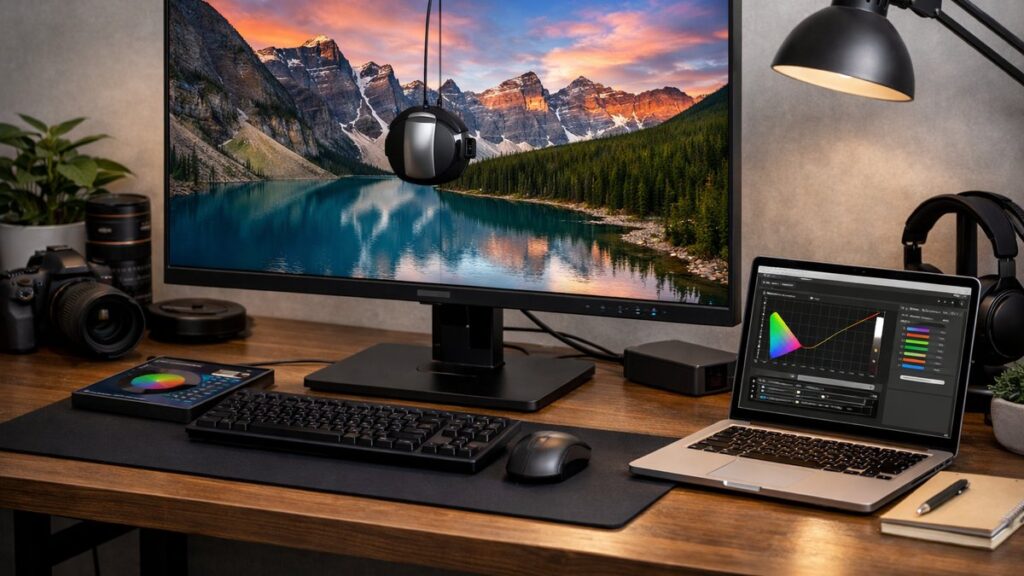
ViewSonic 2K Monitor Setup: First Connection Guide
Before diving into OSD settings and calibration, getting the physical connection right is the foundation of a great ViewSonic 2K monitor setup. Using the wrong cable or port can silently cap your resolution or refresh rate.
Recommended Cables by Use Case
- 🎮 Gaming (144Hz+): DisplayPort 1.2 or higher — always preferred
- 🖥️ Office / Professional: HDMI 2.0 supports 1440p @ 60Hz
- ⚡ High refresh rate (165Hz+): DisplayPort 1.4 required
- 🔌 Dual monitor setups: Combine DP + HDMI for multi-source input
Driver & Software Installation
- Download the ICC color profile from ViewSonic’s official support page for your model
- Install the monitor INF driver via Device Manager if Windows doesn’t auto-detect 1440p
- Use ViewSonic’s vDisplay Manager for advanced OSD control from your PC
- On macOS, set the display to “Scaled” and choose 2560×1440 manually
OSD Menu Navigation & Key Settings
The ViewSonic On-Screen Display (OSD) is your main control panel. Knowing which settings to change — and which to leave alone — saves time and improves image quality immediately.
| OSD Category | Setting | Recommended Value | Notes |
|---|---|---|---|
| Image Adjust | Contrast | 50–60% | Avoid maxing out — causes detail loss in highlights |
| Image Adjust | Brightness | 80–120 cd/m² | Lower for dark rooms; higher for bright offices |
| Color Adjust | Color Temperature | 6500K (sRGB) | Use 5000K for print/design work |
| Color Adjust | RGB Gain | Calibrated per profile | Use hardware calibration for accuracy |
| ViewMode | Preset Profile | Game / Movie / Web | Custom mode lets you save personal settings |
| Setup Menu | Response Time | Advanced (not Ultra Fast) | Ultra Fast introduces overshoot on most panels |
| Setup Menu | Adaptive Sync | On (if GPU supports) | Enables FreeSync / G-Sync Compatible |
| Setup Menu | Low Blue Light | On for long work sessions | Reduces eye strain; slightly warms the image |
Color Calibration for Professional Use
For designers, photographers, and video editors, accurate color matters. Learn how to calibrate your ViewSonic 2K monitor step by step using both hardware and software methods.
Software Calibration (Free)
- Use Windows built-in Display Color Calibration (dccw.exe)
- Set gamma to 2.2 for standard content; 2.4 for cinematic/HDR
- Load ViewSonic’s provided ICC profile in Color Management settings
- Verify with online color checker tools (Lagom, PhotoFriday)
Hardware Calibration (Recommended for Pro)
- Use a colorimeter: X-Rite i1Display or Datacolor Spyder X Pro
- Profile at native resolution 2560×1440 and 100% scaling
- Set target white point to D65 (6500K) and luminance to 100–120 cd/m²
- Re-calibrate every 3–6 months as panel aging shifts color
ViewSonic ViewMode Profiles at a Glance
| ViewMode Profile | Best For | Color Temp | Gamma |
|---|---|---|---|
| sRGB | Web design, general accuracy | 6500K | 2.2 |
| Movie | Streaming, video content | Warm (~5800K) | 2.4 |
| Game | Competitive FPS, fast content | Cool (~7000K) | 2.2 |
| Photo | Image editing, retouching | 6500K | 2.2 |
| Text/Web | Document work, reading | Cool-neutral | 2.0 |
| Custom | Personal saved settings | User-defined | User-defined |
[amazon_rapid query=”ViewSonic 2K monitor” brand=”ViewSonic” layout=”magazine” cols=”2″ country=”US” lang=”en_US” max_pages=”1″ per_page=”4″ sort_by=”RELEVANCE” show_variants=”0″]
Gaming Optimization Settings
Getting the most out of your panel for competitive or immersive gaming requires specific OSD adjustments. Check the best gaming settings for your ViewSonic 2K monitor for model-specific recommendations.
Competitive Gaming (FPS/RTS)
- ⚡ Enable Adaptive Sync (FreeSync/G-Sync Compatible)
- 🎯 Response Time: Advanced (minimize ghosting without overshoot)
- 💡 Brightness: 150–200 cd/m² for bright room visibility
- 🌡️ Color Temp: Cool or 6500K for clear visibility
- 📺 ViewMode: Game preset or Custom
- 🔲 Black Stabilization: Enable to lift dark shadow detail
Immersive / RPG Gaming
- 🎮 ViewMode: Movie or Custom warm profile
- 🌙 Reduce brightness to 80–100 cd/m² for dark environments
- 🔲 Response Time: Standard (smoother gradients)
- 🌈 Saturation: +5 to +10 for richer colors
- 📡 HDR: Enable if panel supports DisplayHDR 400+
Enabling & Verifying 144Hz / 165Hz Refresh Rate
Many users connect via HDMI and wonder why their monitor won’t reach its rated speed. If you need to {{LINK:5b20ed92-0bb7-4c2b-9c70-1habcf08a2247:how to unlock 144Hz on ViewSonic 2K monitors}}, follow this step-by-step checklist:
- Connect via DisplayPort 1.2+ (HDMI 2.0 caps at 1440p @ 75Hz on most models)
- Right-click Desktop → Display Settings → Advanced Display Settings
- Select the ViewSonic monitor and set refresh rate to 144Hz or 165Hz
- In NVIDIA Control Panel or AMD Radeon Settings, confirm the custom resolution matches
- Enable G-Sync Compatible or FreeSync in the GPU control panel
- Verify in-game that frame rate cap matches or exceeds the target refresh rate
Troubleshooting Common ViewSonic 2K Monitor Issues
Resolution & Signal Problems
If your display isn’t showing native 1440p, don’t assume the monitor is defective. Most cases are resolved at the software or cable level. For a detailed walkthrough, fix ViewSonic 2K monitor not showing 1440p resolution with our dedicated guide.
| Issue | Likely Cause | Fix |
|---|---|---|
| Stuck at 1080p | HDMI 1.4 cable or GPU output limitation | Switch to DisplayPort or HDMI 2.0 cable |
| No signal detected | Wrong input source selected in OSD | Press Input Select button or navigate OSD → Setup Menu → Input Select |
| Resolution not available | Missing monitor INF driver | Install driver from ViewSonic support; restart and check Display Settings |
| Blurry image at 1440p | GPU scaling enabled at wrong setting | Set GPU scaling to “No Scaling” or “Full Panel” in driver settings |
| 1440p but washed out colors | Wrong color depth (6-bit vs 8-bit) | Set to 8-bit or 10-bit in NVIDIA/AMD color settings |
Flickering, Ghosting & Blur
Visual artifacts like flicker and motion blur are among the most reported issues on variable refresh rate monitors. To troubleshoot ViewSonic 2K monitor flickering and blur effectively, identify whether the root cause is hardware, driver, or OSD-related.
| Symptom | Root Cause | Solution |
|---|---|---|
| Flickering at low frame rates | VRR range floor too low (e.g., 48Hz floor) | Cap minimum frame rate above VRR floor or enable Low Framerate Compensation (LFC) |
| Ghosting / trailing images | Response time set too slow | Increase to “Advanced” in OSD; avoid “Standard” in fast-paced content |
| Overshoot / inverse ghosting | Response time set to “Ultra Fast” | Drop response time one level to “Advanced” |
| Screen flicker with G-Sync | Framerate dropping below G-Sync range | Set in-game FPS floor to match panel’s minimum sync range |
| Backlight flicker (PWM) | Low brightness triggering PWM dimming | Increase brightness above 50% or use Flicker-Free mode if available |
Additional Known Issues & Quick Fixes
- 🔊 No audio via HDMI: Set Windows audio output to the monitor; check OSD audio settings
- 🌑 Backlight bleed: Normal to some degree on IPS panels; severe cases may warrant an RMA
- 📐 Image not centered: Use OSD → Image Adjust → H/V Position to realign
- 💤 Monitor won’t wake from sleep: Disable USB power saving in Windows; update monitor firmware
- 🎨 Colors look different after update: Reload ICC profile in Windows Color Management
- 🖱️ OSD unresponsive: Hold OSD button 10 seconds to reset to factory defaults
Optimization Checklist by Use Case
| Use Case | Resolution | Refresh Rate | Response Time OSD | Color Profile | Adaptive Sync |
|---|---|---|---|---|---|
| Competitive Gaming | 2560×1440 | 144–165Hz | Advanced | Game / Cool | On |
| Casual Gaming | 2560×1440 | 60–100Hz | Standard | Movie / Warm | On |
| Photo Editing | 2560×1440 | 60Hz | Standard | sRGB / Calibrated ICC | Off |
| Video Editing | 2560×1440 | 60Hz | Standard | Movie / DCI-P3 | Off |
| Office / Productivity | 2560×1440 | 60Hz | Standard | Text/Web + Low Blue Light | Off |
| Mixed Use | 2560×1440 | 100Hz | Advanced | Custom saved | On |
Setup Tips & Pro Recommendations
✅ Do This
- Always use native resolution (2560×1440) — never scale down
- Let the monitor warm up 30 minutes before calibrating
- Update GPU drivers before troubleshooting display issues
- Use DisplayPort for gaming; HDMI 2.0 for secondary/office use
- Enable Adaptive Sync for any content with variable frame rates
- Save your Custom OSD profile after calibration
❌ Avoid This
- Setting Response Time to “Ultra Fast” — causes visible overshoot
- Maxing out contrast — crushes dark detail
- Using HDMI 1.4 for 1440p gaming — bandwidth insufficient
- Running Adaptive Sync with uncapped frame rates below sync floor
- Ignoring factory ICC profiles — defaults are often uncalibrated
- Skipping firmware updates — some fixes target display artifacts
For a complete overview of all available models, features, and side-by-side comparisons, read the full ViewSonic 2K monitor guide before making your final setup decisions.