
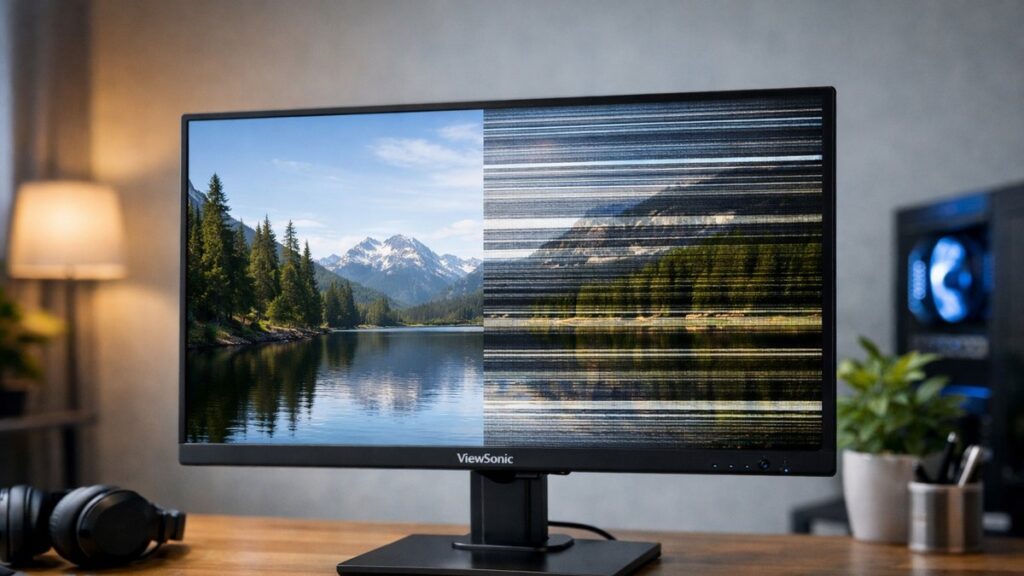
ViewSonic 2K Monitor Flickering Fix: Diagnosis & Solutions
Flickering, ghosting, and blurry motion on a ViewSonic 2K monitor are almost always traceable to a small set of causes. Use this guide to identify the source and apply the right fix before considering a warranty claim.
Quick Diagnosis: Identify Your Problem Type
| Symptom | Most Likely Cause | Priority Fix |
|---|---|---|
| Screen flickers at all times | Refresh rate mismatch or faulty cable | Check OS display settings & cable |
| Flicker only during dark scenes | Adaptive Sync / FreeSync conflict | Disable FreeSync or adjust range |
| Ghost trails behind moving objects | Overdrive setting too low | Increase overdrive level in OSD |
| Halo/inverse ghosting | Overdrive setting too high | Reduce overdrive level in OSD |
| Blurry motion across the screen | Low refresh rate or Motion Blur Reduction off | Enable MPRT / set correct Hz |
| Intermittent random flicker | Loose or damaged signal cable | Replace DisplayPort or HDMI cable |
| Flicker after changing resolution | GPU-to-monitor bandwidth conflict | Use DisplayPort; confirm 2560×1440 signal |
Step-by-Step Flickering Fix Guide
1️⃣ Verify Refresh Rate in Your OS
- Right-click desktop → Display Settings → Advanced display settings
- Confirm the refresh rate matches the monitor’s native spec (75 Hz, 100 Hz, 144 Hz, 165 Hz, or 180 Hz depending on model)
- If set to 60 Hz on a 144 Hz panel, flicker and judder are common side effects
- On Windows 11, also check Graphics Settings → Variable refresh rate is not conflicting
2️⃣ Cable Quality & Connection Check
✅ Recommended cables for 2K @ high refresh rate
- DisplayPort 1.2 or higher (preferred for 144 Hz+)
- HDMI 2.0 for up to 144 Hz at 1440p
- Certified cables from reputable brands
- Cable length under 2 meters where possible
❌ Common cable mistakes causing flicker
- Using HDMI 1.4 for 144 Hz or higher (bandwidth insufficient)
- Cheap unshielded cables near power sources
- Loose connector at monitor or GPU end
- Adapters (e.g., DVI-to-HDMI) at high resolutions
3️⃣ Overdrive Settings in the OSD
Overdrive (also called Response Time in ViewSonic’s OSD) directly controls ghosting and motion blur. The optimal level depends on your panel type and refresh rate.
| ViewSonic OSD Label | Effect | Best For |
|---|---|---|
| Off / Standard | Slower pixel transition — visible ghosting | Office use, no fast motion |
| Advanced / Medium | Balanced — minimal ghosting, no overshoot | Most gaming & general use ✅ |
| Ultra Fast / Extreme | Fast pixel transition — may cause inverse ghosting | Competitive gaming at 144 Hz+ |
💡 Start at “Advanced” and only move to “Ultra Fast” if ghosting persists at your target refresh rate. Inverse ghosting (bright halo ahead of moving objects) means you must step down one level.
4️⃣ Adaptive Sync / FreeSync Conflicts
- FreeSync/Adaptive Sync flicker typically appears when frame rates drop below the monitor’s minimum VRR range (commonly below 48 Hz)
- Fix: Enable Low Framerate Compensation (LFC) in AMD Radeon Settings if available
- Alternatively, cap your in-game frame rate above the lower VRR threshold using RTSS or in-game limiters
- On NVIDIA GPUs, ensure G-Sync Compatible mode is enabled in the NVIDIA Control Panel for ViewSonic FreeSync monitors
- If flicker persists, temporarily disable FreeSync in the OSD to confirm it is the source
5️⃣ Motion Blur Reduction (MPRT)
⚙️ How to enable it
- Enter OSD → Game Mode or Image settings
- Look for “MPRT”, “Motion Blur Reduction”, or “1ms Motion Blur” toggle
- Set refresh rate to 100 Hz or higher before enabling
- Note: MPRT and FreeSync cannot run simultaneously on most ViewSonic models
⚠️ Known trade-offs
- Reduces peak brightness (backlight strobing reduces perceived brightness)
- May introduce slight flicker at lower refresh rates
- Not ideal for HDR content
- Recommended only for competitive gaming scenarios
ViewSonic 2K Monitor OSD Settings Reference
| Setting | Recommended Value | Impact on Flicker/Blur |
|---|---|---|
| Response Time (Overdrive) | Advanced / Medium | Reduces ghosting without inverse ghosting |
| Adaptive Sync / FreeSync | On (with LFC enabled at GPU) | Eliminates tearing; watch for low-FPS flicker |
| MPRT / Motion Blur Reduction | Off (default); On for competitive gaming | Sharpens moving images; reduces brightness |
| Refresh Rate (via OS) | Native max Hz | Critical — wrong Hz causes system-wide flicker |
| Blue Light Filter | Any value | No impact on flicker |
| Black Stabilization | 5–8 out of 10 | No direct impact; improves dark scene visibility |
[amazon_rapid query=”ViewSonic 2K monitor 1440p” brand=”ViewSonic” layout=”magazine” cols=”2″ country=”US” lang=”en_US” max_pages=”1″ per_page=”4″ sort_by=”RELEVANCE” show_variants=”0″]
GPU Driver & Software Fixes
- 🔄 Update GPU drivers — outdated drivers are a common source of flicker after OS updates
- 🧹 Use DDU (Display Driver Uninstaller) in Safe Mode to perform a clean driver reinstall if updating alone does not resolve the issue
- 🖥️ In NVIDIA Control Panel → Change resolution, confirm output color format is set to RGB and color depth to 8-bit or 10-bit
- 🎮 In AMD Radeon Settings → Display, verify pixel format matches monitor input
- ⚡ Disable Hardware-accelerated GPU scheduling (HAGS) temporarily — known to cause flicker on some setups
When to Seek Warranty Replacement
If all software and hardware fixes above have been attempted and the issue persists, the problem is likely a hardware defect. ViewSonic offers a 3-year limited warranty on most monitors.
| Condition | Action |
|---|---|
| Flicker occurs on a different PC with a different cable | Hardware defect confirmed — contact ViewSonic support |
| Flicker visible during BIOS/UEFI screen (pre-OS) | Monitor hardware fault — not a driver issue |
| Backlight strobing noise or uneven brightness zones | Panel or backlight defect — warranty claim |
| Blurry image that persists regardless of overdrive setting | Check native resolution is set; if confirmed, RMA |
| Issue appeared after a physical impact | Physical damage — check warranty terms |
To file a claim, visit ViewSonic’s official support portal with your proof of purchase and serial number. Most models include an Advanced Replacement option to minimize downtime.
More Troubleshooting Resources
Flickering is just one of several common issues that can affect ViewSonic 2K monitors. You can browse all ViewSonic 2K monitor troubleshooting articles to find solutions for color calibration problems, input lag, and connectivity issues organized in one place.