
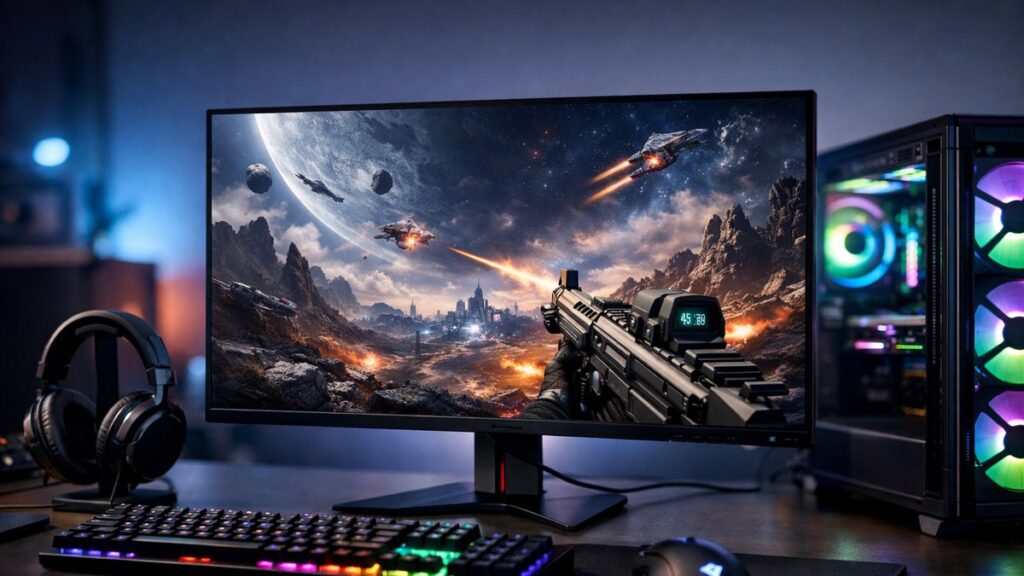
Best 2K Gaming Monitors: Top Picks for Every Budget
Whether you’re building a competitive setup or upgrading your casual rig, finding the best 2K gaming monitor means balancing panel technology, refresh rate, response time, and price. This guide breaks down the key specs and top options to help you decide fast. For a deeper dive into resolution, connectivity, and compatibility, check out the complete 2K monitor buyer's guide.
Key Specs to Compare Before You Buy
| Spec | Entry-Level | Mid-Range | Premium |
|---|---|---|---|
| Resolution | 2560×1440 (QHD) | 2560×1440 (QHD) | 2560×1440 (QHD) |
| Refresh Rate | 75–144Hz | 144–165Hz | 240Hz+ |
| Response Time | 4–5ms GtG | 1–4ms GtG | 0.03–1ms GtG |
| Panel Type | VA or IPS | IPS or Fast IPS | OLED or Fast IPS |
| Sync Technology | FreeSync | FreeSync / G-Sync Compatible | G-Sync / OLED VRR |
| HDR Support | HDR10 (basic) | HDR400–HDR600 | HDR1000+ |
| Price Range | $150–$250 | $250–$450 | $450–$900+ |
Panel Types Compared: Which One Suits Your Game?
🖥️ IPS Panel
- Best color accuracy and wide viewing angles
- Fast pixel response in Fast IPS variants
- Slight backlight bleed possible
- Ideal for: FPS, RPG, content creators
🖥️ VA Panel
- Superior contrast ratios (3000:1–6000:1)
- Better blacks than IPS
- Slower pixel response than IPS/OLED
- Ideal for: story games, cinematic play, dark environments
✨ OLED Panel
- Perfect blacks and infinite contrast
- 0.03ms response time
- Burn-in risk with static elements
- Ideal for: competitive gaming, immersive AAA titles
Top Picks by Refresh Rate Category
⚡ 144Hz — Best Balance of Performance and Price
144Hz remains the sweet spot for most gamers seeking smooth gameplay without demanding a top-tier GPU. Explore the best 2K 144Hz monitors for competitive gaming for detailed model comparisons.
| Model | Panel | Response Time | Sync | Price (approx.) |
|---|---|---|---|---|
| LG 27GP850-B | Nano IPS | 1ms GtG | G-Sync Compatible / FreeSync | ~$280 |
| ASUS TUF VG27AQL1A | IPS | 1ms MPRT | FreeSync / G-Sync Compatible | ~$270 |
| AOC Q27G2S | IPS | 1ms GtG | FreeSync Premium | ~$200 |
| Samsung Odyssey G5 (27″) | VA | 1ms MPRT | FreeSync Premium | ~$180 |
🚀 165Hz — The Competitive Sweet Spot
165Hz monitors offer a meaningful upgrade over 144Hz with minimal GPU overhead. See the best 2K 165Hz monitors reviewed for up-to-date head-to-head comparisons.
| Model | Panel | Response Time | Sync | Price (approx.) |
|---|---|---|---|---|
| LG 27G610A | IPS | 1ms GtG | FreeSync Premium | ~$230 |
| MSI G271QPX | Rapid IPS | 1ms GtG | FreeSync Premium | ~$250 |
| Gigabyte M27Q | IPS | 0.5ms MPRT | FreeSync | ~$250 |
| ViewSonic VX2758A-2K-PRO | IPS | 1ms MPRT | FreeSync Premium | ~$180 |
🏆 240Hz+ — For Elite Competitive Gamers
At 240Hz and above, every frame matters. These monitors are built for esports and fast-twitch gameplay. Browse the top 2K 240Hz monitors for ultra-fast gaming for a full breakdown of specs and value.
| Model | Panel | Response Time | Sync | Price (approx.) |
|---|---|---|---|---|
| LG 27GX790B (OLED) | WOLED | 0.03ms GtG | G-Sync Compatible / FreeSync | ~$700 |
| ASUS ROG Swift PG27AQN | Fast IPS | 1ms GtG | G-Sync | ~$800 |
| MSI MPG271QRX (OLED) | QD-OLED | 0.03ms GtG | FreeSync Premium Pro | ~$650 |
| Gigabyte M27Q X | Fast IPS | 1ms GtG | FreeSync Premium | ~$320 |
[amazon_rapid query=”2K QHD gaming monitor” brand=”” layout=”magazine” cols=”2″ country=”US” lang=”en_US” max_pages=”1″ per_page=”4″ sort_by=”RELEVANCE” show_variants=”0″]
Curved vs Flat 2K Gaming Monitors
🔲 Flat Monitors
- Better for multi-monitor setups
- Preferred in competitive/esports play
- No geometric distortion
- Lower average price point
🌀 Curved Monitors
- More immersive for single-screen setups
- Common curvatures: 1500R, 1800R, 2300R
- Reduced eye strain over long sessions
- Often paired with VA panels
If immersion is your priority, the best curved 2K gaming monitors guide covers top-rated options with curvature ratings, panel types, and performance benchmarks.
OLED vs IPS vs VA: Quick Decision Guide
| Priority | Recommended Panel | Why |
|---|---|---|
| Fastest response time | OLED | 0.03ms GtG, no motion blur |
| Best color accuracy | IPS / Nano IPS | Wide color gamut, consistent hues |
| Deepest blacks / high contrast | VA or OLED | VA 3000:1+, OLED infinite contrast |
| Budget-conscious | IPS or VA | More affordable than OLED |
| Long gaming sessions | IPS | Less burn-in risk, good brightness |
| Cinematic / immersive gaming | OLED | Superior HDR rendering |
OLED monitors deliver an unmatched visual experience for 2K gaming. The best 2K OLED monitors for gaming roundup covers the leading QD-OLED and WOLED options with real-world performance data.
Buyer Checklist: What to Verify Before Purchasing
- ✅ Confirm your GPU can drive 2560×1440 at your target refresh rate
- ✅ Check DisplayPort 1.4 or HDMI 2.1 support for full bandwidth
- ✅ Verify adaptive sync compatibility with your graphics card brand
- ✅ Look for factory-calibrated panels if color accuracy matters
- ✅ Evaluate ergonomics: height adjust, tilt, swivel, and VESA mount
- ✅ Check warranty terms, especially for OLED burn-in coverage
- ✅ Review return policy in case of dead pixels or uniformity issues
GPU Pairing Guide for 2K Gaming
| Target Refresh Rate | Minimum GPU (NVIDIA) | Minimum GPU (AMD) | Recommended GPU |
|---|---|---|---|
| 75–100Hz (casual) | RTX 3060 | RX 6600 XT | RTX 3060 Ti / RX 6700 XT |
| 144Hz (competitive) | RTX 3070 | RX 6700 XT | RTX 4070 / RX 7800 XT |
| 165–180Hz (enthusiast) | RTX 3070 Ti | RX 6800 | RTX 4070 Super / RX 7900 GRE |
| 240Hz+ (elite) | RTX 4080 | RX 7900 XT | RTX 4090 / RX 7900 XTX |
Console Compatibility at 2K Resolution
🎮 PlayStation 5
- Native support for 1440p output
- Requires HDMI 2.1 for 120Hz at QHD
- Confirm monitor has HDMI 2.1 port
- VRR supported on compatible displays
🎮 Xbox Series X
- Full native 1440p support
- HDMI 2.1 enables 120Hz at 1440p
- FreeSync Premium support on many displays
- Auto HDR enhances older game library
🎮 Nintendo Switch
- Max output: 1080p via HDMI
- Upscaled to 1440p on the monitor
- Any HDMI port is sufficient
- Great image quality with pixel-rich panels
Pro Tips for Getting the Most from Your 2K Monitor
- 💡 Enable your GPU’s adaptive sync in driver settings — don’t rely on the monitor’s menu alone
- 💡 Calibrate brightness to your room ambient light to reduce eye fatigue
- 💡 Set overdrive (response time boost) to its medium level to avoid inverse ghosting
- 💡 Use DisplayPort over HDMI wherever possible for maximum bandwidth and refresh rate support
- 💡 Keep static overlays (health bars, crosshairs) minimal on OLED panels to reduce burn-in risk
- 💡 Run pixel-shift or panel care features built into OLED monitors during non-gaming hours