
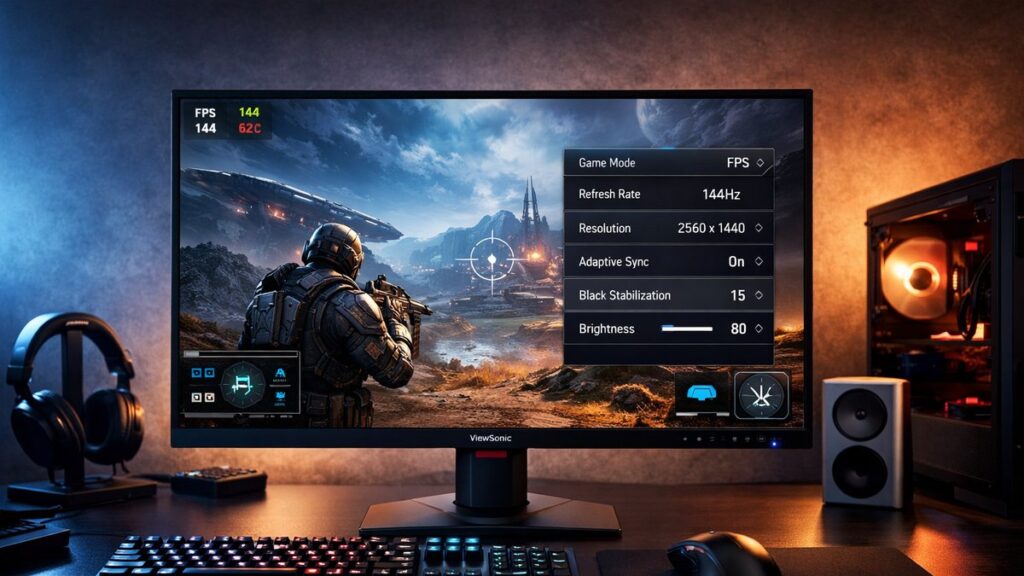
ViewSonic 2K Monitor Best Settings for Gaming
Getting the most out of your ViewSonic 2K monitor requires more than just plugging it in. The right combination of OSD settings can dramatically reduce input lag, eliminate tearing, and improve visual clarity. This guide covers every key setting you need to optimize your gaming experience.
Quick-Start: Recommended Gaming Settings at a Glance
| Setting | Recommended Value | Why It Matters |
|---|---|---|
| Refresh Rate | 165Hz / 144Hz (max available) | Smoother motion, lower perceived lag |
| Response Time | Ultra Fast / Fast | Reduces ghosting in fast-paced games |
| Adaptive Sync | Enabled (FreeSync / G-Sync Compatible) | Eliminates screen tearing |
| Black Stabilization | 7–8 out of 10 | Improves visibility in dark scenes |
| HDR | Off (SDR gaming) / On (HDR titles only) | Avoids washed-out SDR content |
| Color Mode | Gaming / FPS / RTS | Genre-optimized presets |
| Sharpness | 50–60% | Balanced clarity without artifacts |
| Brightness | 80–100 cd/m² | Reduces eye fatigue in long sessions |
Step 1 — Activating the Full Refresh Rate
ViewSonic 2K monitors often default to 60Hz even when capable of 144Hz or 165Hz. You must manually enable the higher refresh rate through your OS display settings and confirm it in the OSD.
Windows Setup
- Right-click Desktop → Display Settings
- Scroll to Advanced Display Settings
- Select “Choose a refresh rate”
- Pick the highest available value
- Confirm via monitor OSD → Information
Cable Requirements
- ⚡ DisplayPort 1.2+ → 144Hz/165Hz at 1440p
- ⚡ HDMI 2.0 → Up to 144Hz at 1440p
- ⚠️ HDMI 1.4 → Limited to 75Hz at 1440p
- ❌ VGA/DVI → Not suitable for 2K high refresh
Step 2 — Response Time Presets Explained
ViewSonic labels response time overdrive differently across models. Choosing the wrong preset introduces inverse ghosting (coronas around moving objects), which is worse than standard ghosting.
| Preset Name | Overdrive Level | Best For | Risk |
|---|---|---|---|
| Standard | None / Minimal | Office, casual use | Ghosting at high speed |
| Advanced | Moderate | RPG, strategy games | Low risk |
| Ultra Fast | High | FPS, racing, sports | Possible coronas at 60Hz |
| Fastest (some models) | Maximum | Competitive FPS only | Heavy inverse ghosting at low FPS |
✅ Recommendation: Use “Ultra Fast” when playing above 100 FPS. Drop to “Advanced” if you notice white halos around moving objects.
Step 3 — Enabling FreeSync or G-Sync Compatible Mode
AMD FreeSync (Radeon GPUs)
- Open AMD Radeon Software
- Go to Display tab
- Toggle AMD FreeSync → On
- In ViewSonic OSD → Advanced → Adaptive Sync → Enable
- Set FreeSync range within monitor’s VRR window
NVIDIA G-Sync Compatible (GeForce GPUs)
- Open NVIDIA Control Panel
- Display → Set up G-SYNC
- Check “Enable G-SYNC, G-SYNC Compatible”
- Select your ViewSonic monitor
- Enable in OSD → same Adaptive Sync toggle
⚠️ Never use VSync simultaneously with FreeSync/G-Sync — it reintroduces the input lag you are trying to eliminate. Use in-game frame caps instead to stay within the VRR window.
Step 4 — Black Stabilization for Competitive Gaming
Black Stabilization (also called Shadow Boost on some ViewSonic models) lifts the gamma in dark areas, making enemies in shadows clearly visible without overexposing bright areas.
| Level | Effect | Best Use Case |
|---|---|---|
| 1–3 | Minimal lift, near-native black | Movie watching, story games |
| 4–6 | Moderate gamma boost | RPG, open-world games |
| 7–8 | Strong shadow detail reveal | FPS (Valorant, CS2, Warzone) |
| 9–10 | Maximum — blacks look gray | Extreme competitive only; unnatural look |
Step 5 — HDR Toggle: When to Use It (and When Not To)
✅ Enable HDR When…
- Playing a native HDR title (Cyberpunk 2077, Horizon Zero Dawn)
- Your ViewSonic model supports DisplayHDR 400 or higher
- You want cinematic visuals over competitive edge
- The game has a dedicated HDR calibration menu
❌ Disable HDR When…
- Playing SDR games (HDR makes them look washed out)
- Using Windows desktop — SDR UI looks faded
- In competitive FPS — HDR can slightly increase input lag
- Your monitor is DisplayHDR 400 only (limited real benefit)
Genre-Specific ViewSonic Gaming Presets
| Game Genre | Color Mode | Response Time | Black Stabilization | Adaptive Sync |
|---|---|---|---|---|
| Competitive FPS (CS2, Valorant) | FPS | Ultra Fast | 7–8 | On |
| Battle Royale (Warzone, Apex) | FPS / Gaming | Ultra Fast | 6–7 | On |
| Racing (Forza, Gran Turismo) | Gaming | Ultra Fast | 5 | On |
| RPG / Open World | Movie / sRGB | Advanced | 4–5 | On |
| Sports (FIFA, NBA 2K) | Gaming / RTS | Ultra Fast | 5 | On |
| Strategy / RTS | RTS | Advanced | 3–4 | On |
Color Calibration Tips for 2K Gaming
Color Temperature
- 🎮 Gaming: 6500K (sRGB standard)
- 🏆 Competitive: Slightly cooler (7000K) for blue-enhanced clarity
- 🎨 Content creation: D65 / 6500K strict
Gamma & Contrast
- 🎮 Gaming gamma: 2.2 (standard)
- 🏆 Competitive gamma: 1.8–2.0 (brighter midtones)
- 🔆 Contrast: Keep at native (do not lower below 50%)
Top ViewSonic 2K Gaming Monitor Models to Configure
[amazon_rapid query=”ViewSonic 2K gaming monitor” brand=”ViewSonic” layout=”magazine” cols=”2″ country=”US” lang=”en_US” max_pages=”1″ per_page=”4″ sort_by=”RELEVANCE” show_variants=”0″]
Common ViewSonic OSD Menu Navigation
Most ViewSonic 2K monitors use a 5-way joystick or physical buttons on the back-right panel. Here is the typical path to the most important gaming settings:
| Setting | OSD Path |
|---|---|
| Refresh Rate Confirmation | Menu → Information |
| Response Time / Overdrive | Menu → Display → Response Time |
| Adaptive Sync | Menu → Display → Adaptive Sync |
| Black Stabilization | Menu → Game → Black Stabilization |
| HDR Toggle | Menu → Color → HDR Setting |
| Color Mode | Menu → Color → Color Space |
| Sharpness | Menu → Display → Sharpness |
| Blue Light Filter | Menu → Color → Low Blue Light |
Performance Checklist Before Every Session
- ✅ Confirm refresh rate matches monitor spec in OS settings
- ✅ Adaptive Sync enabled in both OSD and GPU driver
- ✅ Response time set to Ultra Fast (or Advanced if coronas visible)
- ✅ HDR off unless playing a native HDR title
- ✅ Black Stabilization at 7–8 for FPS, lower for other genres
- ✅ VSync disabled in-game (use frame cap instead)
- ✅ DisplayPort cable used (preferred over HDMI for high refresh)
- ✅ GPU drivers fully updated
For hardware setup, cable management, and troubleshooting display issues, go back to ViewSonic 2K monitor setup and tips for the full configuration walkthrough.