
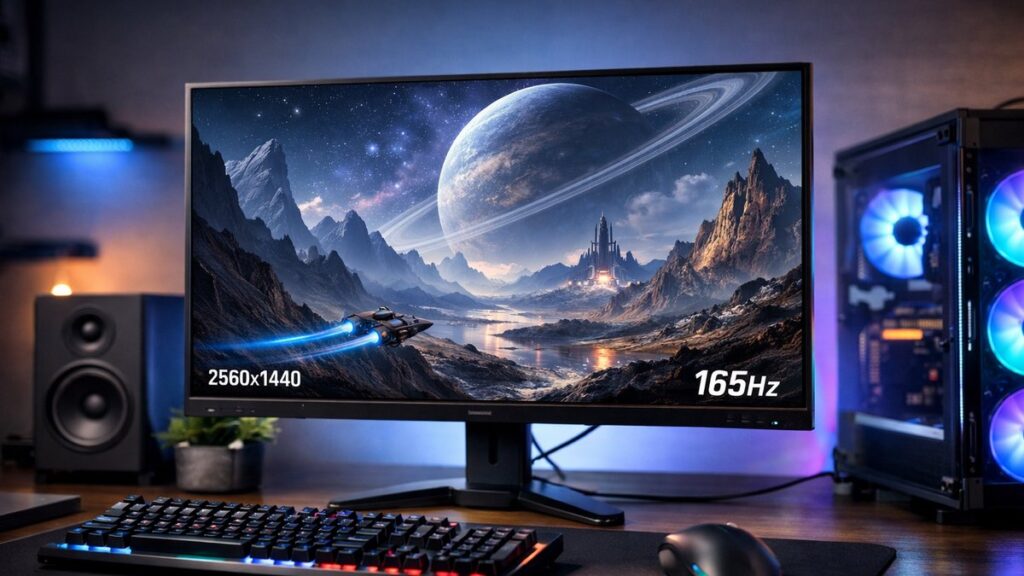
Why 2K 165Hz Is the Sweet Spot for Gaming Monitors
The 2K 165Hz monitor hits a precise balance: enough resolution for sharp visuals and enough refresh rate for competitive, fluid gameplay — without the price premium of 4K or 240Hz panels. If you want to compare all refresh rates in our 2K gaming monitor roundup, this tier consistently stands out as the most value-dense option for mainstream and enthusiast gamers alike.
2K 165Hz Monitor Comparison Table
| Monitor | Panel Type | Resolution | Refresh Rate | Response Time | HDR | Price Range |
|---|---|---|---|---|---|---|
| LG 27GP850-B | Nano IPS | 2560×1440 | 165Hz (OC 180Hz) | 1ms GtG | HDR400 | Mid |
| MSI G274QPX | Rapid IPS | 2560×1440 | 165Hz | 1ms GtG | HDR400 | Mid |
| Gigabyte M27Q | IPS | 2560×1440 | 170Hz | 0.5ms MPRT | HDR400 | Budget-Mid |
| Samsung Odyssey G5 (27″) | VA | 2560×1440 | 165Hz | 1ms MPRT | HDR10 | Budget-Mid |
| ASUS TUF Gaming VG27AQ | IPS | 2560×1440 | 165Hz (OC) | 1ms MPRT | HDR10 | Mid |
| BenQ MOBIUZ EX2710Q | IPS | 2560×1440 | 165Hz | 1ms GtG | HDR400 | Mid |
| AOC Q27G3XMN | Mini-LED VA | 2560×1440 | 180Hz | 1ms MPRT | HDR1000 | Mid-High |
Key Specs to Evaluate Before Buying
🖥️ Panel Technology
- IPS — Best color accuracy and wide viewing angles; ideal for mixed use
- VA — Superior contrast ratios (3000:1+); better for dark room gaming
- TN — Fastest pixel response but weakest color quality; rare at 2K
- Nano IPS / Rapid IPS — Enhanced IPS variants with faster response times
⚡ Refresh Rate & Sync
- Native 165Hz vs overclocked to 165Hz — check panel specs
- G-Sync Compatible or AMD FreeSync Premium support is essential
- Variable Refresh Rate (VRR) range matters: wider is better (e.g., 48–165Hz)
- Some 165Hz panels can be overclocked to 170–180Hz for extra headroom
🎨 Color & HDR
- Minimum sRGB 95%+ for accurate everyday color
- DCI-P3 90%+ for vibrant, cinematic gaming visuals
- HDR400 is entry-level; HDR600 or HDR1000 delivers a meaningful HDR experience
- Local dimming zones significantly improve HDR contrast
🔌 Connectivity
- DisplayPort 1.4 — required for 2K 165Hz without compression
- HDMI 2.0 supports 2K 144Hz; HDMI 2.1 supports full 165Hz+
- USB-C with DisplayPort Alt Mode is a bonus for laptop users
- Built-in USB hub saves desk clutter
Top Picks by Use Case
| Use Case | Best Pick | Why |
|---|---|---|
| Competitive FPS / Esports | LG 27GP850-B | 1ms GtG, Nano IPS, excellent motion clarity |
| Budget Gaming | Gigabyte M27Q | Affordable, solid IPS panel, 170Hz native |
| Dark Room / Immersive RPG | Samsung Odyssey G5 | High VA contrast, deep blacks |
| Creative + Gaming Hybrid | BenQ MOBIUZ EX2710Q | Wide color gamut, built-in speakers, HDR400 |
| HDR Enthusiast | AOC Q27G3XMN | Mini-LED, HDR1000, local dimming zones |
| Multi-device / Laptop User | MSI G274QPX | USB-C, KVM switch, versatile connectivity |
[amazon_rapid query=”2K 165Hz gaming monitor” brand=”” layout=”magazine” cols=”2″ country=”US” lang=”en_US” max_pages=”1″ per_page=”4″ sort_by=”RELEVANCE” show_variants=”0″]
GPU Requirements for 2K 165Hz Gaming
Driving 2560×1440 at 165 frames per second demands meaningful GPU horsepower. Pairing a 2K 165Hz monitor with an underpowered card means the high refresh rate goes to waste in demanding titles.
| Gaming Tier | Recommended GPU | Expected FPS at 2K (AAA Titles) |
|---|---|---|
| Entry / Budget | RTX 3060 / RX 6650 XT | 80–110 FPS |
| Mid-Range (Sweet Spot) | RTX 4070 / RX 7800 XT | 120–160 FPS |
| High-End | RTX 4070 Ti / RX 7900 XT | 150–180+ FPS |
| Esports / Low-Demand Titles | RTX 3060 Ti and above | 160–200+ FPS |
Pros and Cons of 2K 165Hz Monitors
✅ Advantages
- Sharper than 1080p — pixels per inch noticeably improved at 27″
- Smooth, responsive gameplay for both competitive and story titles
- More affordable than 240Hz or 4K equivalents
- Wide selection of IPS, VA, and Mini-LED panel options
- Mid-range GPUs can realistically hit 165 FPS in many games
❌ Limitations
- Not future-proof for users planning to upgrade to 4K
- HDR performance varies widely — many panels only offer HDR400 (entry-level)
- Demands a capable GPU to fully utilize 165Hz in AAA games
- Not ideal for professional photo/video editing without wide-gamut panels
Quick Buying Checklist
- Confirm native 165Hz (not just overclocked) if consistency matters to you
- Verify DisplayPort 1.4 is included for full bandwidth support
- Check for FreeSync Premium or G-Sync Compatible certification
- Match the panel type to your primary use: IPS for color, VA for contrast
- Assess HDR tier — only HDR600+ with local dimming delivers real HDR impact
- Ensure your GPU can sustain 120–165 FPS at 1440p in your target games
- Look for ergonomic stand features: height, tilt, swivel, pivot adjustment