
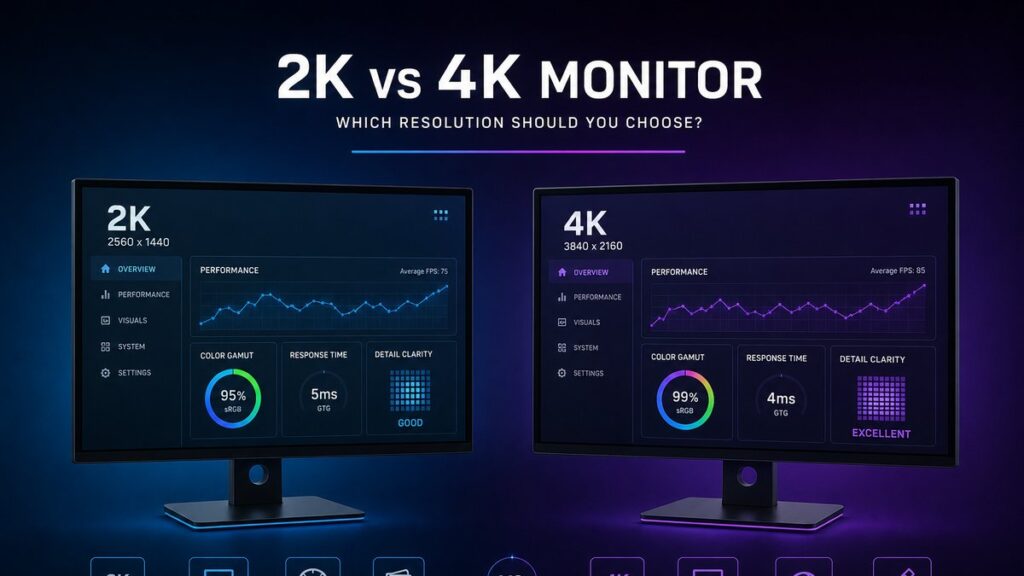
A 2K QHD monitor (2560×1440, ~3.7 million pixels) delivers the best balance of sharpness, refresh rate, and GPU cost for most gamers and productivity users. A 4K UHD monitor (3840×2160, ~8.3 million pixels) is the stronger choice for professional content creators, large-screen setups of 32 inches or more, and native 4K media consumption.
What Are the Key Differences Between 2K and 4K Resolution Specs?
Specification | 2K / QHD (1440p) | 4K / UHD (2160p) |
|---|---|---|
Native Resolution | 2560 × 1440 | 3840 × 2160 |
Total Pixels | ~3.7 million | ~8.3 million |
Pixel Density at 27″ | ~109 PPI | ~163 PPI |
Pixel Density at 32″ | ~92 PPI | ~138 PPI |
Typical Panel Sizes | 24″ – 32″ | 27″ – 43″ |
Peak Refresh Rate (available) | Up to 360 Hz | Up to 240 Hz (emerging) |
GPU Demand | Moderate | Very High |
Entry Price Point | ~$200 – $350 | ~$350 – $700+ |
Primary Strength | Competitive gaming, productivity | Content creation, media consumption |
Which Resolution Wins for Your Use Case?
Competitive FPS or esports player on a 24″–27″ screen → 2K QHD, because 360 Hz panels are available and GPU cost is far lower than 4K equivalents.
Single-player open-world gamer with an RTX 4080 or RTX 4090 → 4K UHD, because ray tracing and HDR content look markedly better at 3840×2160 on a 32″ display.
Professional video editor working with 4K source footage → 4K UHD, because a native 1:1 pixel preview in DaVinci Resolve or Adobe Premiere Pro eliminates scaling artifacts.
Photographer or retoucher on a 27″ IPS panel → Either works; a calibrated 2K IPS such as the LG 27GP850-B delivers accurate colour without the GPU overhead of 4K.
Software developer or data analyst on a budget → 2K QHD, because the 2560×1440 canvas displays more code columns than 1080p while requiring only a mid-range GPU such as an RTX 3060.
Console gamer using a PS5 or Xbox Series X → 4K UHD, because both consoles output native 4K signals and do not depend on PC GPU performance.
Streaming and media consumption on a 32″+ screen → 4K UHD, because Netflix 4K and UHD Blu-ray resolve visibly more detail at 138 PPI versus 92 PPI on a 32″ QHD panel.
Sharpness and Visual Quality Explained
Does pixel density matter at typical desk distances?
At a viewing distance of 60–80 cm, the human visual system reaches its acuity limit at roughly 60 PPI. Both 2K (109 PPI at 27″) and 4K (163 PPI at 27″) exceed that threshold, which is why the difference is subtle on smaller screens. The gap becomes clearly perceptible on panels 32 inches and larger, where QHD drops to ~92 PPI and UHD holds at ~138 PPI.
Where does 2K QHD sharpness hold up?
Clean, alias-free text rendering at standard Windows and macOS DPI settings without forced scaling.
109 PPI at 27″ comfortably exceeds the “retina threshold” for seated desktop use.
Panel technology — IPS, VA, or OLED — has a larger visual impact than the pixel-count gap vs. 4K at this screen size.
Motion clarity in fast gaming scenarios depends more on response time (sub-1 ms on OLED, 1–5 ms on IPS) than on resolution.
Where does 4K UHD sharpness justify the premium?
Noticeably finer detail on 32″+ displays where QHD pixel density drops below 100 PPI.
Native 1:1 rendering of 4K video timelines and 24–50 MP RAW files in photo editing software.
Windows UI scaling at 150% on a 27″ 4K panel produces a result equivalent to a sharp 1800p logical resolution — more usable workspace than QHD without sacrificing legibility.
HDR highlights and shadow gradations resolve more convincingly on high-brightness 4K Mini-LED panels such as the Samsung Odyssey Neo G7 32″ or Asus ProArt PA32UCG.
What GPU Do You Need for 2K vs 4K Gaming?
Target Resolution & Refresh Rate | Minimum GPU | Recommended GPU | High-End / Max Settings |
|---|---|---|---|
2K / 1440p @ 60 Hz | RTX 3060 / RX 6600 XT | RTX 3070 / RX 6700 XT | RTX 4070 / RX 7800 XT |
2K / 1440p @ 144 Hz | RTX 3070 / RX 6700 XT | RTX 4070 / RX 7800 XT | RTX 4080 / RX 7900 XT |
2K / 1440p @ 240–360 Hz | RTX 4070 / RX 7900 XT | RTX 4080 / RX 7900 XTX | RTX 4090 |
4K / 2160p @ 60 Hz | RTX 3080 / RX 6800 XT | RTX 4070 Ti / RX 7900 XT | RTX 4090 / RX 7900 XTX |
4K / 2160p @ 144 Hz | RTX 4080 / RX 7900 XTX | RTX 4090 | RTX 4090 + DLSS 3 / FSR 3 |
4K / 2160p @ 240 Hz | RTX 4090 + DLSS 3 | RTX 4090 + DLSS 3 Frame Gen | Next-gen GPU (anticipated) |
Upscaling pipelines — NVIDIA DLSS 3 Frame Generation, AMD FSR 3, and Intel XeSS — reduce the GPU burden at 4K by rendering at a lower internal resolution and reconstructing the output. DLSS 3 on an RTX 4080 can approach native-4K visual quality at 144 Hz in supported titles, but GPU-generated frames introduce a small latency overhead that competitive players should factor in.
Gaming Performance: 2K vs 4K in Practice
2K QHD Gaming Strengths
144 Hz, 165 Hz, and 240 Hz panels widely available from $200–$400 (e.g., LG 27GP850-B, Asus ROG Swift PG279QM).
360 Hz QHD panels such as the Asus ROG Swift Pro PG27AQN target elite esports players.
An RTX 4070 can sustain 144+ fps at 1440p in demanding AAA titles.
G-Sync and FreeSync Premium Pro certified options available across all budgets.
Lower thermal and power demands on GPU — meaningful in small form factor or laptop builds.
4K UHD Gaming Strengths
Visibly superior detail in open-world and single-player titles such as Cyberpunk 2077 and Alan Wake 2 with ray tracing enabled.
PS5 and Xbox Series X output native 4K without any PC GPU dependency.
HDR peak brightness above 1,000 nits on Mini-LED 4K panels (e.g., Asus ROG Swift PG32UQX at 1,400 nits) delivers measurable HDR impact.
Doubles as a reference-grade display for 4K streaming services (Netflix, Disney+, Apple TV+).
DLSS 3 and FSR 3 increasingly close the frame-rate gap with 2K at equivalent GPU tiers.
Professional Workflows: Which Resolution Fits Each Task?
Workflow | 2K / QHD | 4K / UHD | Recommended |
|---|---|---|---|
4K Video Editing (DaVinci Resolve, Premiere Pro) | Scaled preview only | Native 1:1 pixel preview | 4K UHD |
Photo Retouching (Lightroom, Capture One) | Very capable | More fine detail visible | 4K preferred |
Graphic Design / UI-UX | Excellent | Excellent | Either |
3D Modeling / CAD (Blender, SolidWorks) | Good viewport clarity | Superior wireframe detail | 4K at 32″+ |
Software Development / Coding | Ideal — no scaling needed | Excellent with 150% scaling | 2K (lower cost) |
Data Analysis / Spreadsheets | More columns vs. 1080p | Even more columns visible | Either |
Competitive Esports | Up to 360 Hz available | GPU-demanding above 144 Hz | 2K QHD |
Which Panel Technology Should You Choose at 2K or 4K?
Resolution determines pixel count; panel technology determines contrast depth, colour accuracy, and pixel response time. An OLED 2K display will outperform a TN 4K panel in virtually every perceived image quality metric except raw detail at large screen sizes.
Panel Type | Available at 2K? | Available at 4K? | Key Advantage | Typical Response Time |
|---|---|---|---|---|
IPS | Wide selection | Wide selection | Colour accuracy, 178° viewing angles | 1–5 ms (GtG) |
VA | Available | Available | 3000:1+ native contrast ratio | 4–8 ms (GtG) |
TN | Available | Limited options | Lowest input lag, lowest cost | 0.5–2 ms (GtG) |
OLED (WQHD / UHD) | Rapidly expanding | Available (premium) | Infinite contrast, <0.1 ms response | <0.1 ms (GtG) |
Mini-LED IPS/VA | Available | Available | High peak brightness, local dimming | 1–4 ms (GtG) |
How Much Does a Full 2K vs 4K Setup Cost?
2K / QHD Setup Budget
Monitor: $200–$500 (IPS 144–360 Hz; OLED 240 Hz options from ~$450).
Capable GPU: $300–$500 (RTX 4070 / RX 7800 XT range).
Estimated all-in: ~$500–$1,000.
Strong mid-range monitor variety from LG, Asus, Samsung, and MSI.
Best frames-per-dollar ratio for PC gaming.
4K / UHD Setup Budget
Monitor: $400–$1,500+ (OLED 4K panels start around $800; Mini-LED 4K from ~$500).
Capable GPU: $600–$1,600 (RTX 4080 to RTX 4090 range).
Estimated all-in: ~$1,000–$3,000+.
Premium investment; justified for professional creators and large-screen enthusiasts.
Console gamers avoid PC GPU costs entirely.
Top-Rated 2K and 4K Monitors to Consider
[amazon_rapid query=”2K 4K gaming monitor QHD UHD” brand=”” layout=”magazine” cols=”2″ country=”US” lang=”en_US” max_pages=”1″ per_page=”4″ sort_by=”RELEVANCE” show_variants=”0″]
How Do Refresh Rate and Response Time Differ Between 2K and 4K?
Refresh rate ceiling: where 2K has the clear lead
Pushing more pixels per frame requires proportionally more bandwidth from both the GPU and the display’s internal scaler. The DisplayPort 1.4 standard supports 4K at 144 Hz using Display Stream Compression (DSC); reaching 4K at 240 Hz requires DisplayPort 2.1 (80 Gbps). By contrast, 2K at 360 Hz runs comfortably over DisplayPort 1.4 without compression. This engineering constraint explains why 2K monitors reach 360 Hz today while 4K tops out at 240 Hz in premium models.
Response time: panel-dependent, not resolution-dependent
Pixel response time — the transition speed from one colour state to another, measured in milliseconds — is determined by panel technology, not native resolution. OLED panels at both 2K (e.g., LG 27GX790B, 0.03 ms GtG) and 4K (e.g., Asus ROG Swift OLED PG32UCDM, 0.03 ms GtG) achieve sub-0.1 ms response. IPS panels at either resolution typically land at 1–5 ms GtG. Selecting a 4K monitor does not automatically mean slower pixel response, but high-refresh-rate 4K options carry a significant price premium over comparable 2K panels.
Pre-Purchase Checklist: 2K vs 4K Monitor
Confirm your GPU model and its maximum tested frame rate at 1440p and 2160p in your primary game titles before choosing a panel resolution.
Measure your physical desk depth — if the monitor will sit closer than 60 cm, a 27″ QHD panel at 109 PPI is sufficient; at 80 cm+ on a 32″ screen, 4K’s 138 PPI advantage becomes visible.
Check the monitor’s port complement: DisplayPort 2.1 is required for 4K at 240 Hz without DSC; HDMI 2.1 (48 Gbps) is needed for 4K at 120 Hz from a PS5 or Xbox Series X.
Verify HDR certification tier — VESA DisplayHDR 600 is the practical minimum for noticeable HDR; DisplayHDR 1000 or True Black 400 (OLED) delivers reference-grade performance.
Confirm adaptive sync compatibility: G-Sync Compatible or AMD FreeSync Premium Pro certification ensures tear-free output across your GPU brand’s driver stack.
Check Windows scaling behaviour at the target resolution — 4K at 27″ typically requires 150% scaling; verify that your primary applications (CAD, creative tools, IDEs) render crisply at non-integer scale factors.
For professional colour work, verify the panel’s colour gamut coverage — look for DCI-P3 95%+ or AdobeRGB 99%+ certifications from the manufacturer or validated by a testing body such as DisplayMate or RTINGS.
Review panel warranty and dead-pixel policy — OLED panels from LG and Samsung carry burn-in warranties; confirm the specific terms before purchase.
Key Decision Factors at a Glance
Decision Factor | Advantage |
|---|---|
Best pixel density value at 27″ | 2K QHD (109 PPI, no scaling required) |
Highest achievable refresh rate | 2K QHD (up to 360 Hz) |
Superior image detail at 32″+ | 4K UHD (138 PPI vs. 92 PPI) |
Lower GPU cost to drive properly | 2K QHD (RTX 4070 class sufficient at 144 Hz) |
Native 4K content creation workflow | 4K UHD |
Best price-to-performance for PC gaming | 2K QHD |
Console gaming display (PS5 / Xbox Series X) | 4K UHD |
Broader monitor model selection | 2K QHD |
DisplayPort 2.1 high-bandwidth connection | 4K UHD (required for 240 Hz) |
Common Questions
Can a 4K monitor run at 1440p for better frame rates?
Yes, every 4K monitor accepts a 1440p input signal, but the panel must integer-scale or interpolate pixels to fill the 3840×2160 grid. On most IPS and OLED 4K panels, 1440p via GPU downscaling looks noticeably softer than on a native 2K panel, because 2560×1440 does not divide evenly into 3840×2160 (a 1.5× factor, not an integer).
Is WQHD the same as 2K?
WQHD (Wide Quad HD, 2560×1440) is the resolution most commonly marketed as “2K” by monitor brands. Strictly, the Digital Cinema Initiatives (DCI) define 2K as 2048×1080. In consumer monitor contexts, 2K and 1440p refer to the same 2560×1440 panel resolution.
Does 4K affect input lag?
Resolution alone does not cause input lag — panel processing pipeline and overdrive settings are the primary variables. A 4K 144 Hz OLED monitor such as the Asus ROG Swift OLED PG32UCDM measures under 2 ms total input lag at 144 Hz, comparable to flagship 2K gaming panels at the same refresh rate.
A 2K QHD monitor runs at 2560×1440 pixels (~3.7 million total). A 4K UHD monitor runs at 3840×2160 pixels (~8.3 million total). For most gamers and productivity users, 2K QHD delivers the best balance of sharpness, refresh rate, and GPU cost. For professional content creators, screens of 32 inches or larger, and native 4K media consumption, 4K UHD is the stronger choice.
We also found that switching from a mid-range GPU to a flagship card made a far more tangible gaming impact at 4K than the resolution upgrade itself did at 2K. If your GPU cannot sustain 60+ fps at 4K on high settings, we recommend choosing 2K and reinvesting the savings into a higher-refresh-rate panel.
Several industry and research bodies publish data that contextualise the 2K vs 4K decision:
- According to the Steam Hardware Survey, 1440p (2K QHD) has consistently been the fastest-growing desktop resolution among PC gamers, surpassing 1080p adoption among users who upgraded their GPU in the past hardware cycle.
- According to RTINGS.com measurements, OLED panels at both 2K and 4K achieve input lag figures below 2 ms at 120 Hz and above, confirming that resolution class does not determine input latency.
- According to DisplayPort specification documents published by VESA, DisplayPort 2.1 delivers up to 80 Gbps of bandwidth — enough to drive 4K at 240 Hz without Display Stream Compression.
- According to the Consumer Technology Association (CTA), Ultra HD (4K) televisions and monitors now represent the majority of new large-screen display shipments above 32 inches in North America.
- According to Futuresource Consulting, 4K streaming content consumption has grown substantially year-over-year as services such as Netflix and Disney+ expanded their UHD libraries, reinforcing the practical value of a 4K display for media use.
Key Takeaways: 2K vs 4K Monitor
- 2K QHD (2560×1440) is the best all-round choice for PC gamers and productivity users on 24″–27″ screens.
- 4K UHD (3840×2160) justifies its premium on screens of 32 inches or larger, for 4K content creators, and for console gamers.
- 2K supports refresh rates up to 360 Hz; 4K currently peaks at 240 Hz and demands a significantly more powerful GPU.
- Panel technology (OLED, IPS, Mini-LED) affects perceived image quality more than the resolution difference on screens under 32 inches.
- DLSS 3, FSR 3, and XeSS upscaling can close the frame-rate gap at 4K, but add a small latency overhead unsuitable for competitive play.
Frequently Asked Questions
What is the best monitor resolution for gaming?
For most PC gamers, 2K QHD (2560×1440) is the best monitor resolution. It supports refresh rates up to 360 Hz and runs well on mid-range GPUs. 4K UHD (3840×2160) is the best choice only if you own a flagship GPU and primarily play detail-rich single-player titles.
Is WQHD the same as 2K?
Yes, in consumer monitor marketing, WQHD (Wide Quad HD, 2560×1440) and 2K refer to the same resolution. Strictly, the Digital Cinema Initiatives define 2K as 2048×1080, but monitor brands universally use 2K to mean 1440p.
Can a 4K monitor run at 1440p for better frame rates?
Yes, but image quality will be softer. A 4K panel must interpolate 1440p across its 3840×2160 grid using a non-integer 1.5× scale factor. A native 2K monitor always looks sharper at 1440p than a 4K monitor displaying the same signal.
Does a 4K monitor affect input lag?
Resolution alone does not cause input lag. Panel processing and overdrive settings are the main variables. A 4K 144 Hz OLED panel can measure under 2 ms total input lag — comparable to top 2K gaming monitors at the same refresh rate.
Which resolution is better for professional content creation?
4K UHD is better for professional content creation. It enables native 1:1 pixel previews of 4K video in DaVinci Resolve and Adobe Premiere Pro. It also reveals finer detail when retouching high-megapixel RAW files in Lightroom or Capture One.