
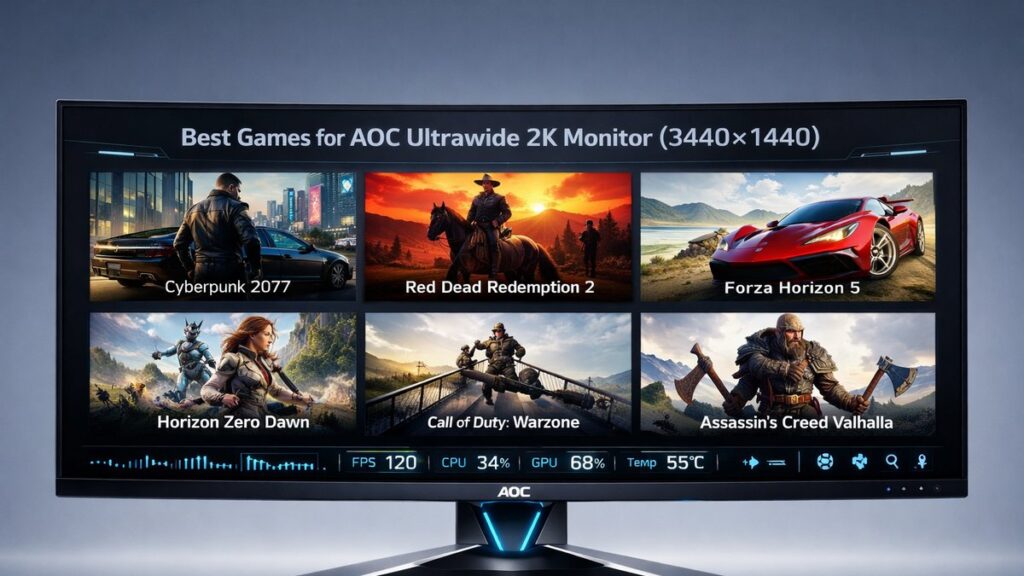
Best Games for AOC Ultrawide 2K Monitors: Direct Answer
The AOC CU34G2X and similar 3440×1440 ultrawide displays deliver the greatest visual impact in open-world, racing, simulation, and cinematic RPG titles. Games with native 21:9 support, high draw distances, and detailed environments expose every advantage of a 34-inch curved VA panel running at 144 Hz with 1 ms MPRT response time.
Ultrawide 2K Game Comparison at a Glance
| Game | Native 21:9 Support | Recommended Resolution | Target Frame Rate | GPU Demand | Key Visual Benefit |
|---|---|---|---|---|---|
| Cyberpunk 2077 | Yes (full UI) | 3440×1440 | 60–100 fps | Very High (RTX 4070+) | Neon cityscape panoramas |
| Red Dead Redemption 2 | Yes (full UI) | 3440×1440 | 60–90 fps | High (RTX 3080+) | Expansive landscape draw distance |
| Microsoft Flight Simulator | Yes (full UI) | 3440×1440 | 30–60 fps | Very High (RTX 4080+) | Horizon wraparound immersion |
| Forza Horizon 5 | Yes (full UI) | 3440×1440 | 120–144 fps | Medium-High (RTX 3070+) | Track peripheral vision advantage |
| The Witcher 3 (Next-Gen) | Yes (full UI) | 3440×1440 | 60–100 fps | High (RTX 3070+) | Forest and sky immersion |
| Elden Ring | Partial (mod recommended) | 3440×1440 | 60 fps (capped) | Medium (RTX 3060+) | Fog and environment breadth |
| Elite Dangerous | Yes (full UI) | 3440×1440 | 90–144 fps | Medium (RTX 3060+) | Space cockpit wraparound |
| Star Citizen | Yes (full UI) | 3440×1440 | 40–60 fps | Very High (RTX 4080+) | Spaceport and nebula panoramas |
Which Game Fits Your Setup and Play Style?
Use the decision matrix below to match your GPU tier, preferred genre, and frame-rate priority to the right title for the AOC CU34G2X or any comparable 34-inch 3440×1440 curved display.
- If you own an RTX 4070 or higher and prioritize visual spectacle → Cyberpunk 2077 at 3440×1440, Ultra settings, DLSS Quality mode, because ray-traced reflections and the wide city corridors are purpose-built for 21:9 FOV.
- If you want the highest frame rate to exploit 144 Hz fully → Forza Horizon 5, because its DirectX 12 renderer scales to 144 fps at 3440×1440 on mid-range hardware like the RTX 3070, keeping FreeSync Premium Pro (supported by the CU34G2X) engaged continuously.
- If cinematic immersion matters more than raw fps → Red Dead Redemption 2, because the Rockstar Advanced Game Engine renders foliage, weather, and horizon detail that fills a 34-inch curved panel with almost no wasted screen space.
- If you fly or drive simulations → Microsoft Flight Simulator or Forza Horizon 5, because a 178° horizontal field of view on ultrawide hardware replaces the need for a multi-monitor setup in most sim scenarios.
- If you prefer action-RPG combat with a limited GPU (RTX 3060 class) → Elden Ring with the Flawless Widescreen utility, because the base engine is relatively light and 60 fps at 3440×1440 is achievable without a flagship card.
- If you play space or flight titles long-session → Elite Dangerous, because the game’s native 21:9 cockpit layout was designed around wide-format displays and causes zero UI stretching or cropping.
Recommended In-Game Settings for 3440×1440 on AOC Ultrawide Displays
Resolution and Aspect Ratio Configuration
Always set in-game resolution to 3440×1440 and aspect ratio to 21:9 explicitly. Some engines default to 16:9 and pillarbox the image, wasting the panel’s native width.
- Confirm the game’s video settings menu shows 3440×1440 as a selectable option before launching in full-screen mode.
- If only borderless windowed mode is available (common in older DirectX 11 titles), match Windows display settings to 3440×1440 at 144 Hz beforehand.
- Games using Unreal Engine 4 or 5 often require adding ResolutionSizeX=3440 and ResolutionSizeY=1440 to the Engine.ini or GameUserSettings.ini file when the UI resolution picker omits ultrawide presets.
- Check the WSGF (Widescreen Gaming Forum) database to confirm a specific title’s 21:9 compatibility tier before purchasing.
Shadow and Draw Distance — The Ultrawide Visual Payoff
Ultrawide panels reveal more of the game world horizontally, making draw-distance and level-of-detail settings more visible than on 16:9 screens at the same pixel density.
- Set Draw Distance / Object Detail to High or Ultra in open-world games; pop-in at the screen edges is more noticeable on a 34-inch 21:9 display than on a 27-inch 16:9 monitor.
- Shadow Quality at High costs significant VRAM on a 3440×1440 framebuffer (roughly 1.5–2× the VRAM load versus 2560×1440). Target 8 GB VRAM minimum; 12 GB is comfortable for Ultra shadows at this resolution.
- Enable Ambient Occlusion (HBAO+ or GTAO) for contact shadows that add depth across the wider scene — particularly impactful in forest and urban environments rendered across the full 34-inch curve.
Frame Rate Targets and FreeSync Premium Pro Activation
The AOC CU34G2X supports AMD FreeSync Premium Pro, which eliminates screen tearing and reduces stutter across a variable refresh rate range. NVIDIA GPUs can use G-Sync Compatible mode with the same display.
- Enable FreeSync in the monitor’s OSD (On-Screen Display) menu and in AMD Radeon Software or NVIDIA Control Panel (as G-Sync Compatible).
- Cap in-game frame rate 3–5 fps below 144 Hz (e.g., 138 fps) to keep VRR active and avoid brief periods of tearing when the GPU momentarily exceeds the panel’s maximum refresh rate.
- For GPU-heavy titles like Cyberpunk 2077 or Microsoft Flight Simulator, target 60 fps and confirm the FreeSync range covers the low end — the CU34G2X’s VRR range starts at 48 Hz, so frames above 48 fps remain tear-free.
- Use DLSS (NVIDIA), FSR 2+ (AMD/Intel), or XeSS upscaling to maintain frame rates within the FreeSync window without dropping to native 1080p, preserving the 3440×1440 sharpness that defines the ultrawide experience.
HDR Settings on the CU34G2X VA Panel
The AOC CU34G2X carries VESA DisplayHDR 400 certification, meaning peak brightness reaches 400 nits with a static contrast ratio of approximately 3000:1 — strong for a VA panel but below HDR 600 or HDR 1000 tier monitors.
- Enable HDR in Windows Display Settings and in-game simultaneously; mismatched states produce washed-out colors on VA panels.
- In HDR-capable titles (Cyberpunk 2077, Forza Horizon 5, Red Dead Redemption 2), set the in-game HDR brightness calibration slider to match a paper-white reference of roughly 200–250 nits for the CU34G2X’s panel characteristics.
- For competitive or fast-paced play, disable HDR — HDR mode can add 1–2 frames of processing latency and reduces the monitor’s effective 1 ms MPRT advantage.
- VA panel black levels (native contrast ~3000:1) deliver deeper shadow detail in dark scenes than IPS alternatives at this price tier, making HDR in night-time game environments like Cyberpunk 2077 or The Witcher 3 genuinely impactful.
Field of View Adjustments for Ultrawide Gameplay
- First-person shooters: increase FOV to 100–110° at 21:9 to avoid the stretched or tunnel-vision effect that a 16:9-default 90° FOV produces on an ultrawide panel.
- Third-person games: pull camera distance back by 5–15% when an FOV slider is available — the extra horizontal real estate can otherwise make characters feel too centered and small.
- Racing and flight sims: keep FOV at the game’s default wide preset (usually 90–100° horizontal) as these genres are tuned for wide formats and further increases can distort cockpit geometry.
- Games without a built-in FOV slider (Dark Souls series, some older titles) require Flawless Widescreen or Cheat Engine-based fixes to correct the vertical FOV compression that results from forcing 21:9 output.
Top Game Picks: Pros and Cons on AOC Ultrawide 2K
Cyberpunk 2077
- Full native 21:9 UI — zero cropping or stretching
- Ray-traced reflections and neon lighting showcase VA contrast
- DLSS 3.5 / FSR 3 support keeps fps viable on RTX 3080-class GPUs
- Requires 12 GB VRAM for Ultra settings at 3440×1440 without VRAM warnings
- CPU-bound in dense city areas; pair with Ryzen 7 or Core i7 minimum
Red Dead Redemption 2
- Best-in-class draw distance and volumetric weather on ultrawide
- Fully supports 21:9 with no UI mod needed
- Benchmark-proven 60 fps on RTX 3080 at High/Ultra settings
- No DLSS support; FSR 1.0 only — quality loss at lower render scales
- VRAM-heavy: 10 GB recommended for Ultra textures at 3440×1440
Forza Horizon 5
- Reaches 144 fps at 3440×1440 on RTX 3070 — fully exploits CU34G2X refresh rate
- FreeSync Premium Pro and HDR both officially supported
- Excellent per-setting optimization for VRAM-limited systems (8 GB viable)
- Online multiplayer races feel distinctly wider and more spatial on 21:9
- No ray tracing; visual ceiling lower than Cyberpunk 2077 at matched GPU tier
Elden Ring
- Light GPU load — 3440×1440 at 60 fps on RTX 3060 is consistent
- Atmospheric fog and open environments benefit greatly from wider FOV
- Low VRAM demand: 8 GB sufficient at maximum in-game settings
- Requires Flawless Widescreen utility for proper 21:9 UI rendering
- Hard 60 fps engine cap; cannot use 144 Hz advantage of the CU34G2X
Performance Tips Specific to the AOC CU34G2X Hardware
The CU34G2X outputs at 3440×1440 via DisplayPort 1.4 at up to 144 Hz. HDMI 2.0 on the same monitor is limited to 100 Hz maximum — always use DisplayPort for competitive or high-refresh gaming.
- Connect via DisplayPort 1.4 (not HDMI 2.0) to unlock the full 144 Hz refresh rate at 3440×1440.
- Activate Low Input Lag mode in the monitor OSD — this disables post-processing pipelines and reduces display latency below 5 ms, measured independently by RTINGS for similar AOC VA panels.
- Enable MBR (Motion Blur Reduction) only in single-player titles where you accept brightness reduction; MBR and FreeSync cannot operate simultaneously on the CU34G2X.
- Set the monitor’s Color Preset to sRGB or Game 1 mode for accurate color in games that ship with sRGB-calibrated assets — the default “Standard” preset often over-saturates foliage and skin tones.
- The 1800R curve radius means optimal seating distance is 80–100 cm from the screen surface; beyond 120 cm, the curvature advantage in peripheral vision diminishes noticeably.
- For the complete hardware context behind these settings, the AOC ultrawide 2K gaming monitor hub covers panel specs, port configurations, and curved widescreen alternatives in depth.
Pre-Purchase and Pre-Launch Checklist
- Verify the target game lists 3440×1440 or 21:9 ultrawide as a supported resolution on the developer’s official store page or WSGF database before buying.
- Confirm your GPU has at least 8 GB VRAM (12 GB preferred) for comfortable Ultra-preset play at 3440×1440 — framebuffer at this resolution is approximately 40% larger than at 2560×1440.
- Check whether the title supports DLSS 2+, FSR 2+, or XeSS — upscaling at 3440×1440 from a 70% render scale (Quality mode) recovers 30–40% GPU headroom with minimal perceptible quality loss.
- Download and test Flawless Widescreen for any game flagged as “partial” 21:9 support on WSGF before committing time to a playthrough with broken UI.
- Connect the AOC CU34G2X via DisplayPort 1.4 and verify Windows Display Settings shows 3440×1440 at 144 Hz before launching any game.
- Enable FreeSync in the monitor OSD and in Radeon Software or NVIDIA Control Panel (G-Sync Compatible) to confirm variable refresh rate is active — use RTINGS’ monitor test patterns or AMD’s FreeSync demo to validate operation.
- Benchmark each game at target settings using FrameView (NVIDIA) or FCAT-VR equivalent tools; aim for a 1% low fps above 48 Hz to stay within the CU34G2X VRR window at all times.
- If using HDR, calibrate white-point in-game to 200–250 nits to match DisplayHDR 400 panel capability; avoid HDR in competitive modes where latency is a priority.
[amazon_rapid query=”AOC ultrawide 2K gaming monitor” brand=”AOC” layout=”magazine” cols=”2″ country=”US” lang=”en_US” max_pages=”1″ per_page=”4″ sort_by=”RELEVANCE” show_variants=”0″]
Common Questions
Do competitive shooters like CS2 or Valorant support 21:9 on the CU34G2X?
CS2 renders at 21:9 natively but competitive servers do not restrict it. Valorant, however, pillarboxes to 16:9 in ranked play by developer policy, limiting the ultrawide advantage. Confirm each title’s competitive ruleset before investing in ultrawide-specific settings.
Is a 34-inch ultrawide 3440×1440 panel harder to drive than a 27-inch 2560×1440 display?
Yes. A 3440×1440 framebuffer contains roughly 4.95 million pixels versus 3.69 million at 2560×1440 — approximately 34% more pixels per frame. Expect 20–30% lower frame rates at matched settings compared to a 27-inch QHD display when GPU-limited.
Can older games be forced to 21:9 on the AOC CU34G2X?
Many pre-2015 titles lack native 21:9 support but can be patched using Flawless Widescreen, hex-edited executable files, or community mods found via the WSGF. Results vary by engine; some games fix FOV cleanly while others produce HUD stretching that requires additional UI scale adjustments.